13 min read Diesen Artikel auf Deutsch lesen Lire cet article en français Ler este artigo em português
Video Captions: Formats, Tools, Email Use
The short answer
Video captions are timed text for speech and important sound cues, and there are two ways to add them. A closed-caption sidecar file (SRT or WebVTT) is loaded by the player, and the viewer can turn it on or off. Open captions are burned into the frames. Auto-caption tools create the text with speech recognition, so check names and jargon before you export. For video in email or Google Slides, burn the captions in, because you don't control the player there.
In this article
- What are video captions?
- How to apply captions to a video
- What is caption AI, and where does it go wrong?
- Which caption tool fits which job?
- What are viral captions, and how are they made?
- How to send a video through email
- How to add a video to Google Slides
- How to upload a video to Google Slides from your computer
- Captioned video in personalised cold email with EmailFlow OS
- Questions people ask
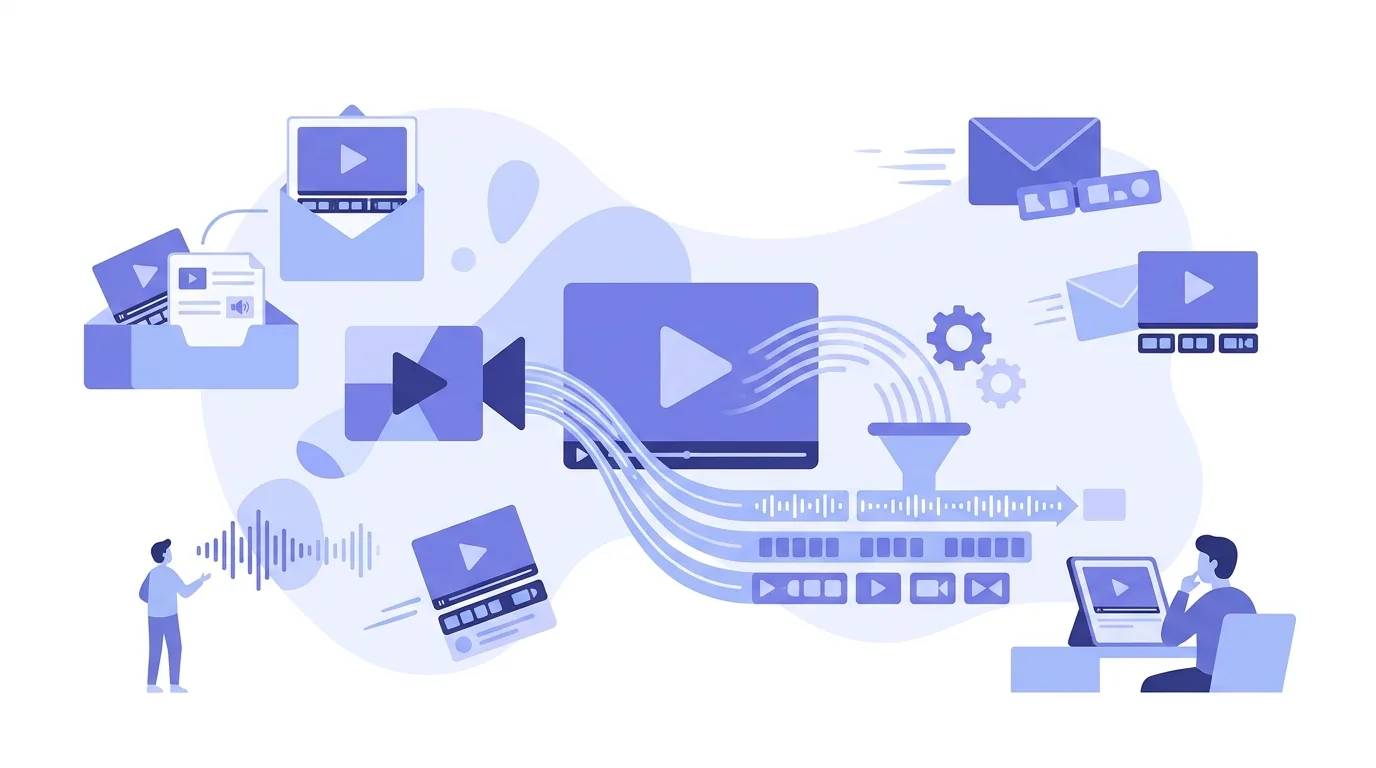
Video captions are timed lines of text that show what's said in a video, plus sounds that carry meaning. Each line appears and disappears on cue. You add them either as a separate caption file (SRT or WebVTT) that the player loads and the viewer can switch off, or burned into the frames so they show in every player. If the video will play somewhere you don't control, like an email landing page or a slide deck, burned-in captions are the only type you can count on to appear.
What are video captions?
Video captions are on-screen text that follows what's said in a video, one cue at a time. Each cue has a start time, an end time and the words. Good captions also include sounds that carry meaning, like [laughter], [music] or [phone rings], and they name the speaker when that isn't obvious. That's the strict difference between captions and subtitles. Subtitles assume the viewer can hear the audio and usually only translate the dialogue. Captions assume the viewer can't hear it.
You can deliver captions in two ways. Closed captions sit in a separate file or track that the player shows on request, and the viewer can turn them off. Open captions (also called burned-in or hard captions) are drawn into the pixels of every frame. They show up in any player, but you can't hide or edit them without rendering the video again. If accessibility is why you're adding captions, the W3C's Web Content Accessibility Guidelines include a success criterion called Captions (Prerecorded). It requires captions for prerecorded audio in synchronized media at Level A, the lowest conformance level. Accessibility audits of websites usually test against that criterion.
How to apply captions to a video
- Finish the edit first. Captions are timed against the final cut. If you trim the intro afterwards, every cue after the cut moves out of sync by the length you removed.
- Create a draft transcript. Use an auto-caption tool or your platform's built-in captioning. For short clips, you can type it yourself.
- Check it against the audio. Fix names, product terms, numbers and punctuation, and add sound cues and speaker labels where they matter.
- Check the timing. Each cue should appear when the line starts and disappear before the next speaker begins. Split long lines so viewers can read them while they're on screen.
- Choose how to deliver them. Export a sidecar file (SRT or VTT) for players that support caption tracks, or burn the captions in wherever you can't control the player.
- Test where the video will actually play. Watch it on mobile and desktop, and inside the email or slide deck, not only in the editor.
Here's what one cue in an SRT file looks like for a short outreach video. The first line is the cue's sequence number. The second line is the timing: a start and an end timecode in hours:minutes:seconds,milliseconds, joined by an arrow (-->). The third line is the text, for example: Hi, this is a quick look at how your team sends from its own domain. A blank line ends the cue, and the next numbered cue follows. In WebVTT the same timecode uses a period instead of the comma before the milliseconds, and the file has to start with the line WEBVTT.
To burn captions in from the command line, use ffmpeg's subtitles filter. It does the job in one pass: ffmpeg -i input.mp4 -vf subtitles=captions.srt output.mp4. The filter only works in an ffmpeg build that includes libass. The command writes a new file, so keep the original without captions for later edits. Upload pages take sidecar files instead. Our guide on how to upload a video to LinkedIn shows where the SRT file goes.
| Caption type | How it's stored | Can the viewer turn it off? | Where it works | Main limit |
|---|---|---|---|---|
| SRT (SubRip) | Plain-text sidecar file. Each cue has a number, a start and end timecode joined by an arrow (with a comma before the milliseconds), the text, then a blank line | Yes | Upload fields on most video platforms and many desktop players | The basic format has no styling or positioning. Files not saved as UTF-8 break accented characters |
| WebVTT (.vtt) | Plain-text sidecar file that starts with the line WEBVTT. Timecodes use a period before the milliseconds | Yes | Web players that load caption tracks through the HTML track element | Renaming an SRT file to .vtt doesn't work, because the header and the timecode separator are different |
| Burned-in (open) | Rendered into the video frames | No | Every player, including email landing pages, slide decks and social feeds | You can't fix a mistake without exporting again. Captions get cut off if the aspect ratio changes later |
What is caption AI, and where does it go wrong?
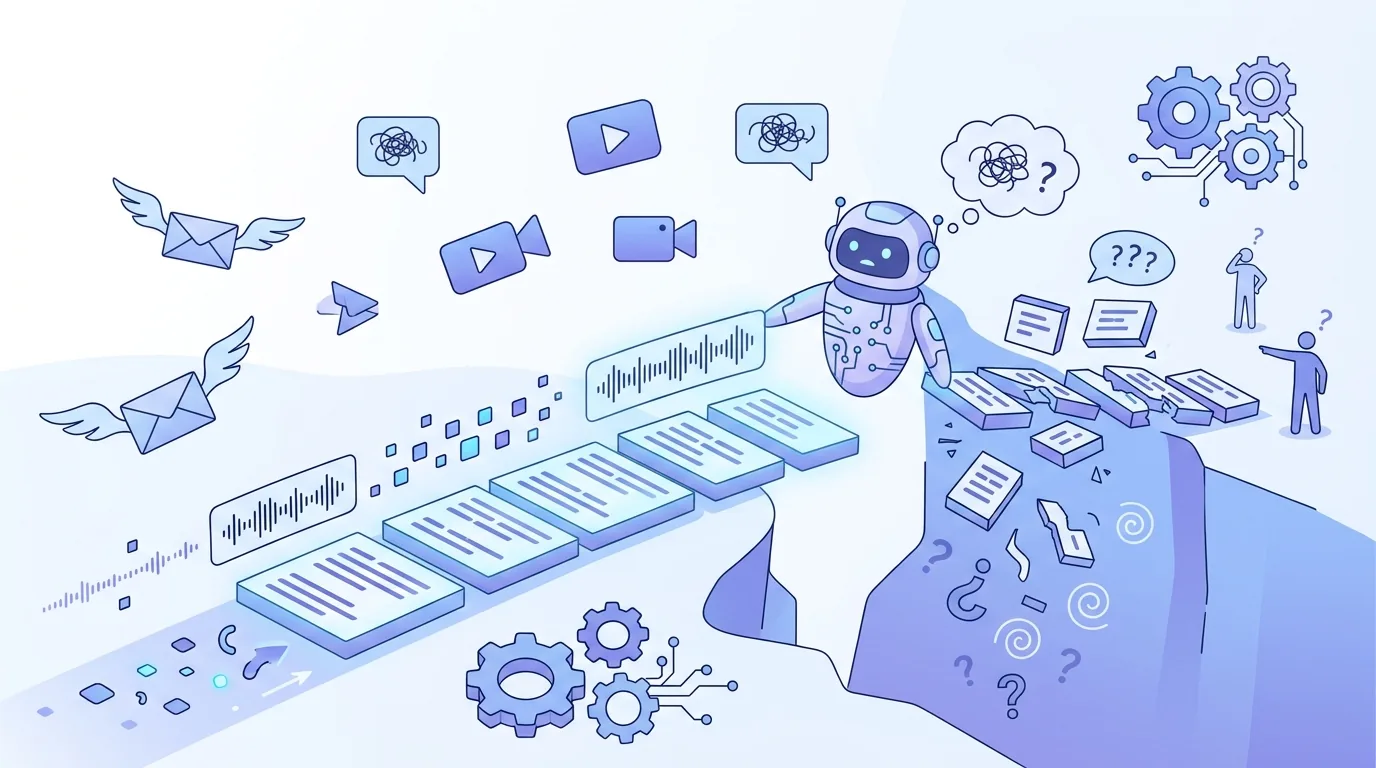
Caption AI is automatic speech recognition (ASR) connected to a timeline. The model turns the audio track into words with timestamps. The tool then groups the words into cues short enough to read and, in social-video tools, styles them. You get speed, but not judgement. Check for these errors every time:
- Names and jargon: company names, product names and acronyms come out as everyday words that sound similar.
- People talking over each other, or background music: overlapping voices get merged into one speaker or left out.
- No audio: if the file has no audio stream at all, the tool returns nothing. Check the file before you blame the caption tool.
- Missing sound cues: most ASR output only transcribes speech, so you have to add [music] or [laughter] by hand.
- Timing drift: cues created before a final trim no longer line up with the edited video.
- Wrong language setting: if you caption a recording with the wrong source language, you get confident nonsense instead of an error.
Here's an example from deliverability talk, the kind of video B2B senders record. Say "we checked your DKIM and SPF in Brevo" and a speech model can plausibly write "we checked your decim and SPS in bravo". Every word is a real word, so a spell checker won't flag any of it. The only fix is to read the transcript against the audio. A glossary or custom-vocabulary field helps where the tool offers one.
If the caption tool returns an empty track, go through the no audio on video causes and fixes first. A missing or muted audio stream is the usual reason.
Which caption tool fits which job?
The right tool depends on where the video ends up. The table compares the tools named in the search results for "video captions" (Google's AI overview and the cited guides, as of November 2026) by the same three questions: what each is built for, what you get from it, and where it stops. Features and plans change, so check each vendor's own documentation before you commit. If you also need the captions in other languages, AI video translation tools add a translation step on top of the transcript.
| Tool | Built for | What you get | Where it stops |
|---|---|---|---|
| YouTube Studio automatic captions | Videos hosted on YouTube (named as a free option in DemoCreator's guide in the search results) | A closed caption track in the YouTube player that viewers can turn on or off and that you can edit | The track lives on YouTube. A video file you download or send somewhere else doesn't include it |
| TikTok auto captions | Short clips posted to TikTok (same source) | Captions added while you post | Tied to the TikTok post. You don't get a reusable file for other channels |
| Choppity | Short social clips (described in Google's AI overview as offering AI auto-captions with viral presets and filler-word removal) | Styled, burned-in captions | Built around social presets, not caption files for web players |
| Adobe Express | Design and quick edits (as listed in Google's AI overview) | Captions as one part of a wider design workflow | A general editor, so it doesn't focus on caption-specific controls |
What are viral captions, and how are they made?
'Viral captions' is the name for the short-form video style. The captions are burned in and centred in the lower third. They show one to a few words at a time, and the word being spoken is highlighted or animated. To make them, a tool takes a transcript with a timestamp for each word and shows each word or short group as its own cue with a style preset. Choppity's viral presets, described in Google's AI overview (as of November 2026), are one example. The style doesn't make a clip spread. It makes a muted clip readable. Two things break it. Platform interface elements, like buttons, the description and the progress bar, can cover the bottom of the frame. And filler-word removal can cut the audio so the remaining words no longer match the speaker's lips.
This style also turns up in customer and creator clips. Our page on UGC video examples covers how that footage gets sent by email once it's captioned.

How to send a video through email
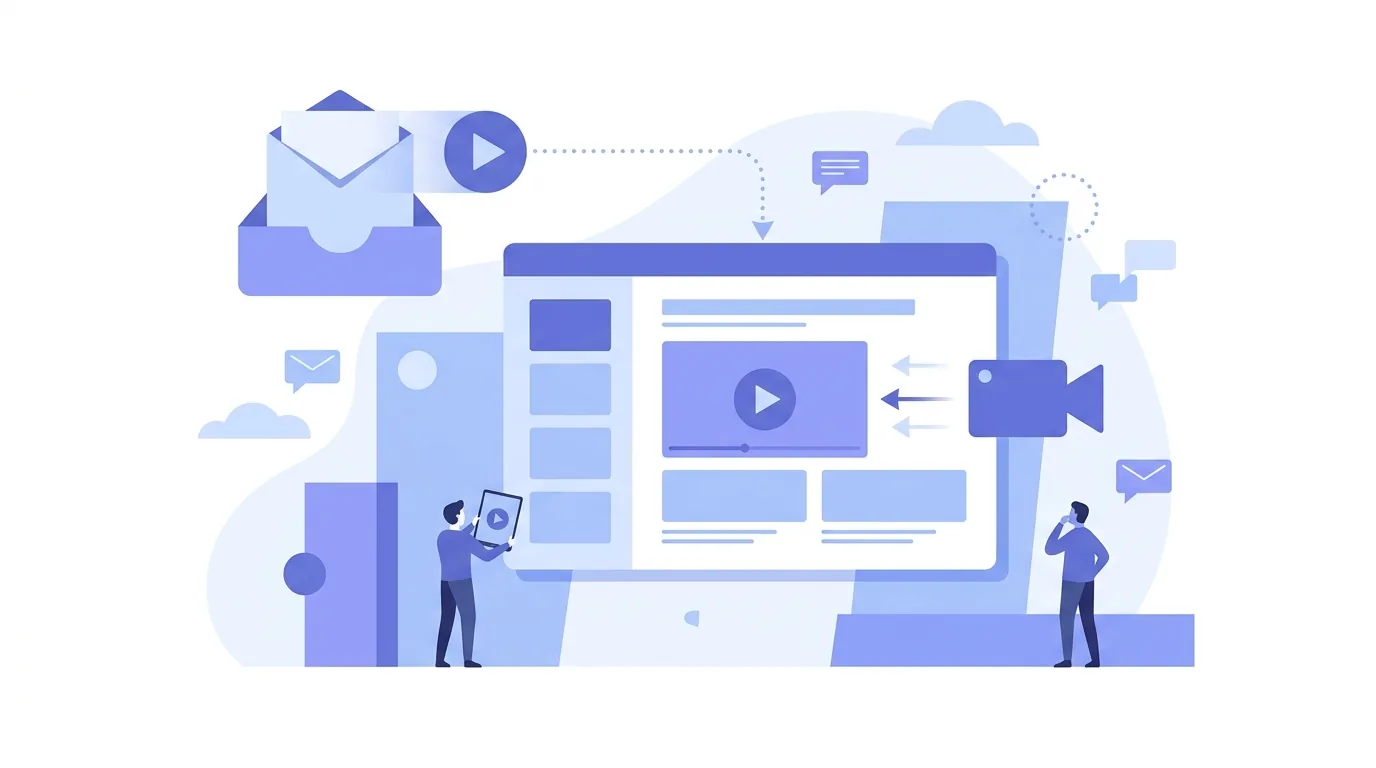
There are two ways to do it, and captions behave differently in each. You can attach the file, but mail providers limit attachment size. Gmail's Help pages (as of November 2026) say that files over Gmail's attachment limit are sent as a Google Drive link instead. Even an attached video won't play inside most mail clients. The recipient downloads it, so a sidecar caption file only helps if they open the video in a player that loads it. The more common way is a linked thumbnail: a still image in the email that links to a page where the video plays. On that page, a VTT track and burned-in captions both work, as long as the page's player supports caption tracks.
- Sending one video: host it, put a thumbnail image in the email body and link it to the page where it plays. Burn the captions in if you don't control that page's player.
- Sending several videos through email: link each one separately, or link to one page that holds all of them. Several attachments all count against the same size limit.
- Sending to many people: every recipient gets the same link and the same file, unless you personalise the video for each recipient.
Our full guide on how to send a video in an email covers the thumbnail-and-link method step by step. For files over the attachment limit, see how to send a large video through email.
How to add a video to Google Slides
In Google Slides, open the slide and choose Insert > Video. The dialog offers three sources: a YouTube search, a YouTube URL, or a file from Google Drive. Pick the video, click Select, then drag it into place. Under Format options you can set start and end times, autoplay and mute. Adding several videos to Google Slides works the same way. Insert each one on its own slide, or put them on the same slide if there's room. Slides doesn't add captions. Either the source video already has them (a YouTube caption track or burned-in text) or they won't appear at all. If they must show when you present, burn them in.
How to upload a video to Google Slides from your computer
Slides can't insert a video straight from your hard drive. Upload the file to Google Drive first, then insert it through Insert > Video > Google Drive. Everyone viewing the deck also needs access to that Drive file. Without access, the video won't play for them, even though it appears on the slide. Sharing settings and playback are covered in how to add video to Google Slides.
Captioned video in personalised cold email with EmailFlow OS
EmailFlow OS is built for personalised video in B2B cold outreach. You record one video, upload it to EmailFlow OS, connect your own Brevo account and sending domain, and import your prospect list into EmailFlow OS. EmailFlow OS then turns that one recording into a separate personalised version for each recipient (not each company). It sends each version from your own inbox, through your Brevo account and your domain. No shared platform sender is involved, so your SPF, DKIM and DMARC records and your domain's reputation stay under your control.
For captions, that means you do the work before the upload. Caption and proofread the recording in your editor, burn the captions in, and only then upload it. Before the campaign goes out, open one personalised version and check that the captions are still readable and correctly timed. How each recipient gets their own version is explained in personalised video message per recipient. The product itself, a EmailFlow OS product, is described on the EmailFlow OS home page.
Questions people ask
- What are video captions?
- Video captions are timed text cues, each with a start time, an end time and the words, that show speech and meaningful sounds such as [music]. Closed captions live in a separate SRT or WebVTT file the viewer can switch off. Open captions are burned into the frames and show in every player. The W3C's WCAG criterion Captions (Prerecorded) asks for captions on prerecorded web video at Level A.
- How do I apply captions to a video?
- Finish the edit, then create a transcript with an auto-caption tool such as YouTube Studio's automatic captions, or type it yourself. Correct names and jargon against the audio, and check that each cue is timed to its line. Then export an SRT or VTT file for platforms with caption upload fields, or burn the captions in, for example with ffmpeg's subtitles filter, when you can't control the player.
- Is Get captions free?
- Captions, the app people often search for as 'Get Captions', is an AI captioning and video-editing app. The vendor's current pricing page sets what the free tier includes and what the paid plans add, and this changes over time. Check that page for limits on exports, watermarks and video length. By comparison, YouTube Studio's automatic captions cost nothing with a YouTube channel, but the captions stay in the YouTube player.
- Are captions and subtitles the same thing?
- Not strictly. Captions are written for viewers who can't hear the audio, so they include sound cues like [music] and speaker labels. Subtitles assume the viewer can hear the audio and usually translate only the dialogue into another language. Many platforms use the two words interchangeably, and both use the same file formats, SRT and WebVTT.
- Should I use SRT or VTT?
- Use SRT when a platform's upload field asks for a caption file. It's the sidecar format most platforms accept. Use WebVTT for your own web player, because browsers load caption tracks in VTT. The two formats differ in the WEBVTT header line and the separator before milliseconds (a comma in SRT, a period in VTT). Convert the file properly instead of just renaming it.
- Do captions work inside an email?
- Only if they're burned into the video. Most mail clients don't play video inside the email. If the recipient downloads an attachment, their player ignores a separate caption file unless it's set up to load it. A thumbnail linked to a playback page supports both caption types, but burned-in captions are the only kind that show up in every player.