11 min read Diesen Artikel auf Deutsch lesen Lire cet article en français Ler este artigo em português
AI Video Translation Tools: How to Choose
The short answer
AI video translation tools work in three stages. Speech recognition turns the audio into a transcript, machine translation converts that transcript, and the tool outputs subtitles, a synthetic or cloned-voice dub, or a dub with re-rendered lip movement. Choose by the output you need, by whether you can edit the transcript and set a glossary before rendering, and by whose voice you're allowed to clone. EmailFlow OS doesn't translate video. It personalises one recording per recipient.
In this article
- How do AI video translation tools actually work?
- Subtitles, dubbing or lip-sync: which output do you need?
- Which AI video translation tools are worth comparing?
- What should decide your choice?
- When does translating a sales video not work?
- Three errors to test for in an outreach video
- Where EmailFlow OS fits: one recording, personalised per recipient
- How do you send a video through email?
- How do you send several videos through email?
- How do you add a video to Google Slides?
- Can you upload a video to Google Slides from your computer?
- How do you add several videos to Google Slides?
- Questions people ask
AI video translation tools transcribe the speech in a video, machine-translate the transcript and return subtitles, a dubbed voice track or a lip-synced dub. When we checked this search in November 2026, Google's AI overview named HeyGen, Synthesia, Canva and Vozo AI, and ElevenLabs and Dubverse.ai showed up in the result snippets. Pick between them by output type, transcript editing before render, glossary support and whether you have permission to clone the speaker's voice.
How do AI video translation tools actually work?
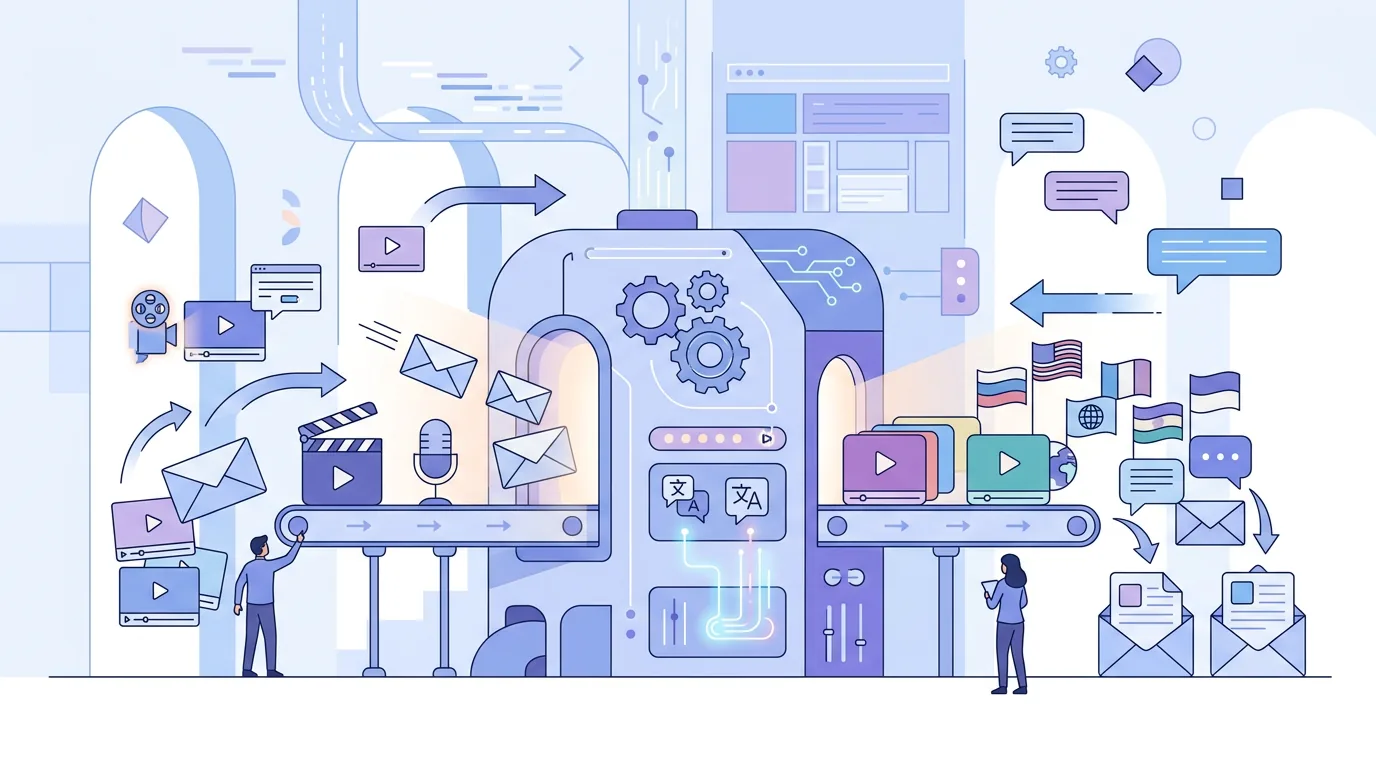
Nearly every AI video translation tool runs the same pipeline, and knowing the stages tells you where errors creep in. First, automatic speech recognition transcribes the original audio and timestamps each segment. Second, machine translation turns that transcript into the target language. Third, the tool produces output in one of three forms: subtitle files or burned-in captions, a dubbed audio track in a stock or cloned voice, or a dub where the speaker's mouth is re-rendered to match the new audio (lip-sync).
Each stage builds on the last. If the transcript mishears a product name, the translation carries that mistake into the dub, and lip-sync then animates the wrong word convincingly. That's why the most useful feature in any of these tools is a transcript editor that lets you correct stage one before you render stages two and three. Re-rendering a finished dub usually takes longer than fixing the text upfront.
Subtitles, dubbing or lip-sync: which output do you need?
| Output | What the viewer gets | Where it breaks |
|---|---|---|
| Subtitles | Original voice, translated text on screen | Translated text often runs longer than the source, so lines get split or shown too briefly. Viewers who watch on mute in a small email preview may not read them. |
| Dubbed audio (stock voice) | A new voice speaking the target language | The voice no longer matches the person on camera, which looks odd in a face-to-camera message. |
| Dubbed audio (cloned voice) | The speaker's own voice timbre in another language | Needs a clean voice sample and the speaker's permission. Background music in the source track can bleed into the clone. |
| Lip-sync dub | Mouth movement re-rendered to the new audio | Artefacts show up with side profiles, hands near the face, beards and fast head turns. Overlapping speakers confuse it. |
For a talking-head sales video, lip-sync looks the most natural when it works and the most unsettling when it doesn't. Subtitles are the least risky option but ask the most of the viewer. The trade-offs between sidecar subtitle files and burned-in text are covered in the guide to video captions in SRT, VTT and burned-in formats.
Which AI video translation tools are worth comparing?
The table below compares the tools that Google's AI overview for this search named when we checked it in November 2026, using the vendors' own claims as that overview summarised them. Language counts are vendor figures. They aren't independent tests, and a language being listed doesn't tell you whether it gets dubbing and lip-sync or only subtitles. Check that for each target language on the vendor's own page before you commit.
| Tool | What the vendor states | Suits | Check before choosing |
|---|---|---|---|
| HeyGen AI Video Translator | 175+ languages and dialects, voice cloning, lip-sync, custom glossaries; accepts uploads or YouTube links (per Google's AI overview) | Face-to-camera videos where lip-sync matters and product terms must stay fixed | Which of your target languages get lip-sync, and how glossary terms are entered |
| Synthesia | 140+ languages, voice cloning, multi-speaker detection (per Google's AI overview) | Videos with more than one speaker, such as interviews or panel clips | Whether speaker separation holds when people talk over each other |
| Canva AI Video Translator | 30+ languages, keeps the speaker's tone, built-in editor (per Google's AI overview) | Teams that already edit in Canva and want translation inside the same editor | Whether your target languages are in the smaller list |
| Vozo AI | 160+ languages and dialects (per Google's AI overview) | Broad language coverage across many markets | Output types and editing options per language |
| ElevenLabs | Text-to-speech and voice generation, per a search result snippet | Producing the dubbed voice track separately and combining it with video in another editor | You handle timing and video assembly yourself |
| Dubverse.ai | AI dubbing with natural-sounding voices, per a search result snippet | Audio dubbing where lip-sync isn't required | Voice selection and transcript editing before export |
What should decide your choice?
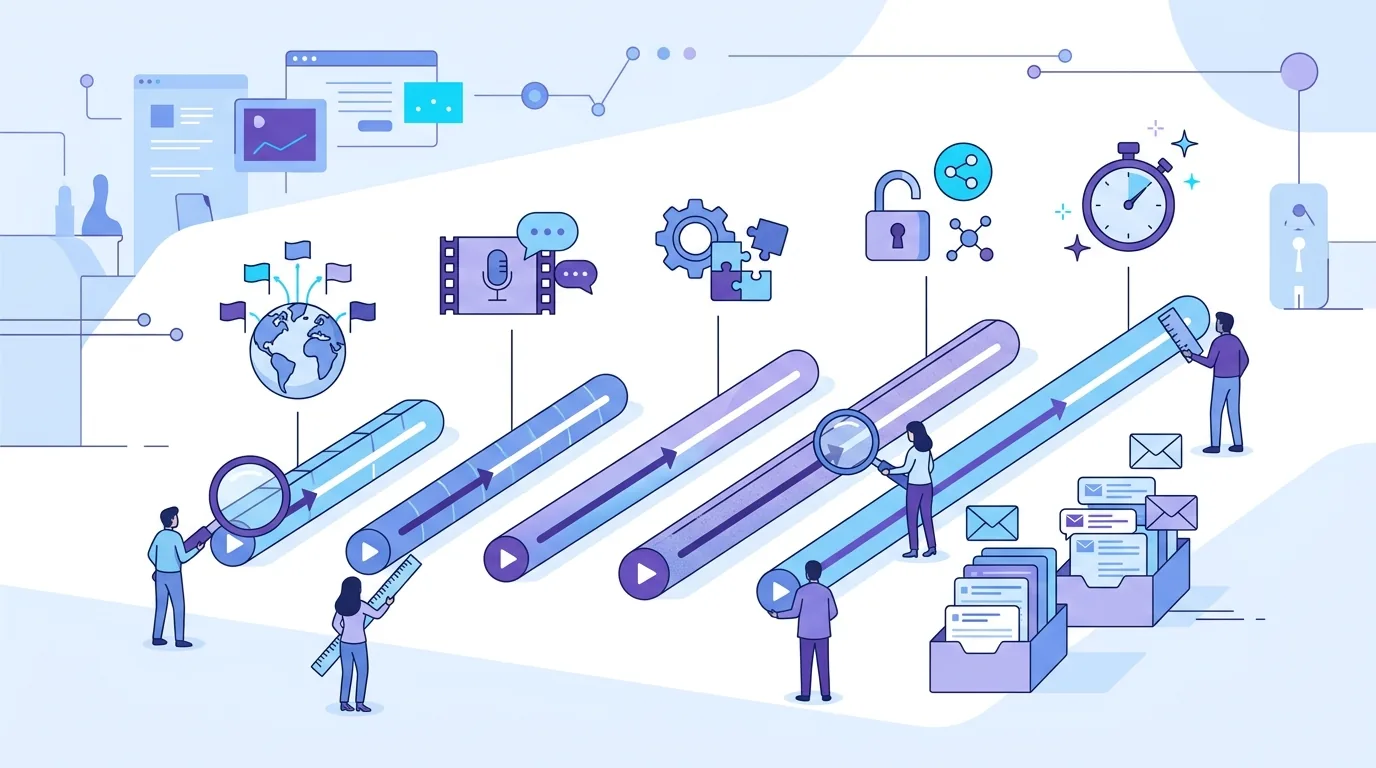
- Output type. Decide between subtitles, dub and lip-sync first. That alone rules out tools that do only audio.
- Transcript editing before render. You want to fix stage-one errors before you pay for or wait on a dub.
- Glossary or fixed terms. Company names, product names and job titles should never be translated. Without a glossary, you'll be correcting them in every video.
- Voice-clone permission. Cloning a colleague's voice means processing their voice as personal data under the GDPR, so get their documented agreement before you upload a sample.
- Disclosure. The EU AI Act sets transparency obligations for deployers of AI-generated or manipulated audio and video that resembles real people. Read the regulation's transparency provisions yourself or ask counsel whether a lip-synced sales video falls under them.
- Export. Check whether you get a downloadable MP4, subtitle files or only a hosted link. That decides where the video can be used next.
When does translating a sales video not work?
In B2B outreach, a translated video promises something the follow-up has to deliver. If a prospect gets a fluent German dub and replies in German, they'll expect the call in German too. If nobody on your team speaks the language, the translation has raised an expectation you can't meet.
Idioms, jokes and wordplay rarely survive machine translation. Prices, dates and units get converted word for word but not adjusted to local format. And a cloned voice speaking a language the person has never spoken can feel off to a native listener even when every word is right. For short cold messages, recording a separate version in each language you actually sell in is often easier than fixing a dub.
Three errors to test for in an outreach video
- Formal or informal address. English "you" doesn't mark formality, but German splits it into the formal Sie and the informal du, and French into vous and tu. The tool has to pick one, and an informal dub addressed to a senior buyer reads as over-familiar. Check which form the transcript uses before rendering.
- Dates said as numbers. US readers put the month first and German readers put the day first, so a date spoken only as numbers can point to two different days once it's translated. Say the month as a word in the source recording, and the ambiguity doesn't reach the translation.
- Names that sound like words. A product or brand name such as Brevo can be heard as an ordinary word in stage one and then translated as that word. A glossary entry or a transcript fix before render keeps it intact. The same applies to job titles that German B2B teams often keep in English, such as Head of Sales.
Where EmailFlow OS fits: one recording, personalised per recipient
This section describes a EmailFlow OS product, and it solves a different problem from translation. You record one video and upload it to EmailFlow OS, connect your Brevo account and sending domain, and import your prospect list into EmailFlow OS. EmailFlow OS then creates a personalised version of that recording for each recipient, not each company, and sends every version from your own inbox, through your own Brevo account and your own sending domain. There's no shared platform sender.
EmailFlow OS doesn't translate the video. If your list spans several languages, choosing the language is something you do before recording. Because sending runs through your own domain, the SPF, DKIM and DMARC records on that domain are what receiving servers check, and you keep control of them. The home page has an overview of how EmailFlow OS handles personalised video email for B2B outreach.
How do you send a video through email?
Most email clients won't play an embedded video file inline, so the standard way to send a video through email is a clickable thumbnail image linked to a hosted video page. Gmail and Outlook both cap attachment size. When a file is too large, Gmail offers to share it as a Google Drive link instead of attaching it.
- Upload the video to a host such as Google Drive, OneDrive or YouTube, and set sharing so the recipient can open it.
- Take a still frame as a thumbnail image and add a play icon to it.
- Insert the image into the email body and link it to the video URL.
- Add a plain-text link below the image, because some clients block images by default.
- Send a test to yourself and open it on desktop and mobile.
Step-by-step instructions for each client are in the guide on how to send a video in an email.
How do you send several videos through email?
To send several videos through email, put them in one shared folder on Google Drive or OneDrive and link the folder once. Attaching several files runs into the client's attachment cap fast, and a message with many links and images is more likely to get caught by spam filters. For files too big to attach, see the guide to sending a large video through email.
How do you add a video to Google Slides?
- Open the presentation and select the slide.
- Click Insert, then Video.
- Choose a source: search YouTube, paste a YouTube URL, or pick a file from Google Drive.
- Click Insert, then drag the frame to size it.
- Open Format options and then Video playback to set autoplay, mute, and start and end times.
The full walkthrough, including playback settings, is in the guide on how to add video to Google Slides.
Can you upload a video to Google Slides from your computer?
Not directly. Google Slides only inserts video from YouTube or Google Drive. To upload a video from your computer, first upload the file to Google Drive, then use Insert, Video and the Google Drive tab in Slides. Viewers need access to the Drive file, or the video won't play for them during the presentation.
How do you add several videos to Google Slides?
To add several videos to Google Slides, repeat Insert, Video for each one. Each video sits in its own frame, on the same slide or on separate slides. Every video keeps its own playback settings, so set autoplay and start time one at a time. Putting several autoplaying videos on one slide makes them start at once.
Questions people ask
- What is the best AI video translation tool?
- There's no single best one. It depends on the output. For a face-to-camera video, look for lip-sync plus a glossary. For interviews, look for multi-speaker detection. If you already edit in a design tool, translation inside that editor saves an export step. Vendor language lists range from 30+ to 175+, per Google's AI overview as of November 2026.
- How accurate is AI video translation?
- A translation can't be more accurate than its transcript, because speech-recognition errors carry through to the dub. The vendor claims don't come with independent accuracy figures. Test each tool with a short clip that contains your product name, a spoken date, a number and a job title, then have a native speaker check the formal or informal address.
- Are free AI video translators good enough for sales videos?
- Free tiers usually cover the same pipeline of transcription, translation and output, but they often limit video length, add watermarks or skip the transcript editor and glossary. Watermarks and uncorrected product names show up more in a sales video than in a social clip, so check those two things first.
- Is lip-sync better than subtitles?
- Neither is better in general. Lip-sync keeps the viewer's eyes on the speaker but can produce visible artefacts with side profiles or hands near the face. Subtitles keep the original voice and are harder to get visibly wrong, but they need the viewer to read and they fail when the video plays muted at a small size.
- Can I clone my colleague's voice for a translated video?
- Only with their agreement. A voice sample is personal data under the GDPR, and the EU AI Act sets transparency duties for synthetic audio and video that resembles real people. Get the agreement documented before you upload a sample to any voice-cloning tool, and check the disclosure question with counsel.
- Does EmailFlow OS translate videos?
- No. EmailFlow OS personalises the one recording you upload, creating a version for each recipient, and sends each version from your own inbox through your own Brevo account and sending domain. Choosing the video's language is up to you before you record.