11 min read Diesen Artikel auf Deutsch lesen Lire cet article en français Ler este artigo em português
Product Demos: Examples, Tools, Video Steps
The short answer
Product demos show a buyer one of their own problems being solved inside your product. Pick the format by stage: a live call for evaluation, a recorded video or interactive click-through for self-serve research, and a short video in cold email for first contact. Write the script problem-first, record one task from start to result, cut it down to that task, and host it so the buyer opens it from a link, not an attachment.
In this article
- What is a product demo?
- Product demo examples you can copy
- What do the best product demo videos have in common?
- How do you create a product demo video?
- Product demo video maker: which tool for which job?
- Is there a free AI product demo video maker?
- Sending a product demo in cold email: what goes wrong
- How EmailFlow OS sends a recorded demo, one per recipient
- Questions people ask
What is a product demo?
Product demos show a prospective buyer a product in use, solving a task the buyer recognises, instead of describing its features. In B2B software they take one of five forms: a live call, a recorded video, an interactive click-through, a sandbox account or a short video sent in cold email. Wikipedia's entry on product demonstration (checked November 2026) describes it as promoting a product by showing it in use to potential customers.
In B2B software, that usually means a screen with real data, a real workflow and the result the buyer cares about. The right format depends on where the buyer is in the decision. Someone who has never heard of you won't book a call, but they might watch a short video someone sent them. Someone comparing vendors wants to click around on their own. Someone close to signing wants their own edge cases tested live.
| Demo format | Who controls the pace | Fits which stage | Where it stops |
|---|---|---|---|
| Live demo (video call or on site) | The presenter, with the buyer interrupting | Evaluation, once a meeting is booked | Needs a booked slot and a presenter for every session |
| Recorded product demo video | The viewer (pause, skip, rewatch) | Research, website, follow-up after a call | Can't answer questions; goes stale when the UI changes |
| Interactive click-through demo | The viewer, clicking through captured screens | Self-serve research, pricing and feature pages | Only shows the paths you captured; no real data entry |
| Sandbox or trial account | The viewer, fully | Late evaluation, technical buyers | Needs setup, sample data and support |
| Short video in a cold email | The viewer, from a link | First contact | Has to earn the click before anyone watches it |
Product demo examples you can copy
Each example below is a complete brief. Swap in your own product, your buyer's task and your data.
- Before-and-after task demo (reporting tool): open on the spreadsheet the buyer uses today, with three tabs and a broken formula. Switch to the product, connect the same data source and show the finished weekly report. End on the export button. One task, no feature tour.
- Single-feature clip for a feature page (approval workflow): a short screen recording of one invoice going from submitted to approved, with the approver's notification visible. No voiceover needed if captions name each step.
- Role-specific variant (CRM add-on): the same product recorded twice. Once from the sales rep's view, logging a call in two clicks, and once from the manager's view, showing the pipeline report that call feeds. Send each to the matching role.
- Interactive click-through on the pricing page: captured screens of onboarding, with hotspots guiding the visitor to import a sample file, map two fields and see the dashboard fill in. Each hotspot carries one sentence.
- Objection demo: a recording that answers one recurring question, for example 'does it work with our SSO?', by showing the SSO settings screen and a login. Reps send it as a reply when the question comes up.
- Integration demo: split screen showing a record created in the product and appearing in the buyer's existing tool, with timestamps visible so the sync is believable.
- Follow-up recap after a live call: a short recording that replays only the two screens the buyer asked about during the meeting, sent in the same email thread as the meeting notes.
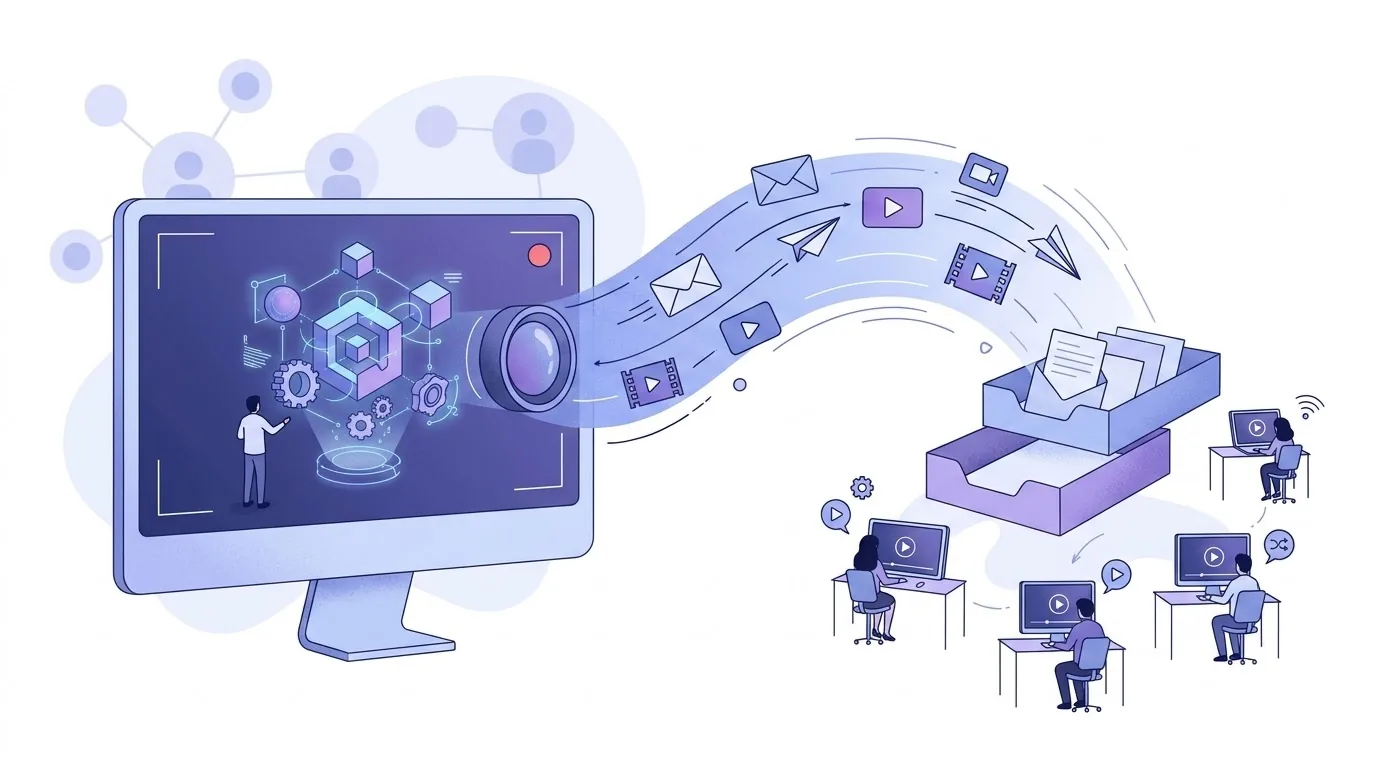
- Cold-outreach demo: a short face-and-screen video. Open with a sentence about the prospect's situation, show one screen that addresses it and close with one question. Host it and send it behind a thumbnail link instead of attaching it.
- Admin setup demo for technical evaluators: a recording of the actual configuration, including permissions and the error message that appears when a field is mapped wrong. Evaluators trust a demo that shows a failure being fixed.
- Changelog demo for existing users: a clip of one new feature in the context of the task it changes, posted with the release note.
Which one to use depends on how much attention the viewer has already given you. For cold contact, the cold-outreach and before-and-after formats suit best because they make one point fast. Website visitors doing research get more from single-feature clips and interactive click-throughs, since they set their own pace. Once a buyer is evaluating, the role-specific, objection, integration and admin demos answer the questions a buying group raises. A full feature tour fails at every stage, because the viewer can't tell which part applies to them.
What do the best product demo videos have in common?
The strong examples on lists of top product demo videos share a few traits. You can check each one in your own draft before you publish.
- They open on the viewer's problem, not on a logo or a login screen.
- They show one task from start to result, with real-looking data instead of 'Test Company 1'.
- The cursor moves slowly enough to follow, and zooms or highlights mark where to look.
- They carry captions, because many viewers watch muted.
- They end on one next step, not a list of options.
Some things reliably go wrong. A demo recorded on a cluttered desktop with notifications popping up exposes private data and pulls attention away. Recording a feature that's about to change means recording it again later. If the audio is captured separately from the screen, it can drift or go missing entirely; for that case our guide on no audio on video goes through the checks in order. A black frame where the app should be usually comes from DRM or a missing OS recording permission, which is covered in screen recording black screen causes and fixes.
How do you create a product demo video?
- Pick one viewer and one task. Write it as a sentence: 'An ops lead sees how to close the month without the spreadsheet.' If it won't fit in one sentence, plan two videos.
- Write the script problem-first: the situation (one line), the task in the product (most of the video), the result on screen (one line), the ask (one line).
- Prepare the environment: a clean browser profile, notifications off, a demo account with plausible data, and the window sized to the resolution you'll export at.
- Record the screen with your voice, and your face if you want it on camera. Record several takes of the task itself rather than editing one long attempt.
- Edit: cut dead time, add zooms on small UI elements, add captions and check the audio level.
- Export and host it. Upload it to a video host or your own site, set access so anyone with the link can watch, and check the link from a signed-out browser.
- Put it where the viewer is: embed it on the feature page, link it in a follow-up, or send it as a thumbnail link in an email.
Step six is where emailed demos most often break. Mail providers cap attachment size and many corporate gateways strip video files, which is why a link behind a thumbnail is the usual method. Our walkthrough on how to create and share a video link covers hosting, access settings and the signed-out test.
Product demo video maker: which tool for which job?
A search for 'product demo maker' turns up four different kinds of tool. Each does a different job, so compare tools within a category, not across categories. Plans, features and limits change often, so check each vendor's own documentation before you commit.
| Tool category | Named examples | What it produces | Suits | Where it stops |
|---|---|---|---|---|
| Screen recorder | OBS Studio, Camtasia, ScreenPal | A video file of your screen, webcam and voice | Recorded demos, objection clips, recaps | Editing ranges from minimal to none; you handle hosting |
| Video editor | Descript, Clipchamp, Camtasia | An edited video with cuts, zooms and captions | Polishing a recording for a website or feature page | Needs a recording to start from |
| AI video generator | Synthesia, HeyGen | Video with an AI avatar or synthetic voice from a script | Explainers in several languages without re-filming a presenter | An avatar is not you; it can't stand in for a rep speaking to a prospect |
| Interactive demo software | Storylane, Navattic, Supademo, Arcade, Hexus | A clickable walkthrough built from captured screens | Self-serve demos on the website and in sales follow-up | Only the captured paths work; not a video file |
Is there a free AI product demo video maker?
OBS Studio is free, open-source software, but it only records and has no AI features. Most AI video generators and interactive demo tools offer a free or trial plan. Each vendor's pricing page sets out what that plan includes, such as export length, watermarks, branding and the number of demos, and those terms change. A free plan is enough to test whether a format works for your buyers. Before you show a demo to prospects, check whether the free output carries the vendor's branding.
Sending a product demo in cold email: what goes wrong
A demo sent in cold email has to get past the receiving mail server before anyone sees it. Google's Email sender guidelines and Yahoo's Sender Best Practices (both checked November 2026) ask bulk senders to authenticate their mail with SPF and DKIM and to publish a DMARC record. Mail from a domain whose records don't align is more likely to be filtered. These are the usual failure modes:
- Video attached as a file: it runs into size limits or gets stripped by the gateway. Use a thumbnail image linked to the hosted video.
- Link to a host that needs sign-in: the prospect hits a login wall. Test the link signed out.
- Same generic demo to the whole list: it reads as a broadcast, because it is one.
- Sent through a shared sender address you don't control: your reputation gets mixed with other senders' mail, and SPF, DKIM and DMARC results don't line up with your own domain.
If any of those records are missing, set them up before you send a demo. Our guide to DKIM, DMARC and SPF for cold email senders lists the records and shows how to check each result in a received message's headers. For the embedding options and their trade-offs, read our guide on how to send a video in an email.
How EmailFlow OS sends a recorded demo, one per recipient
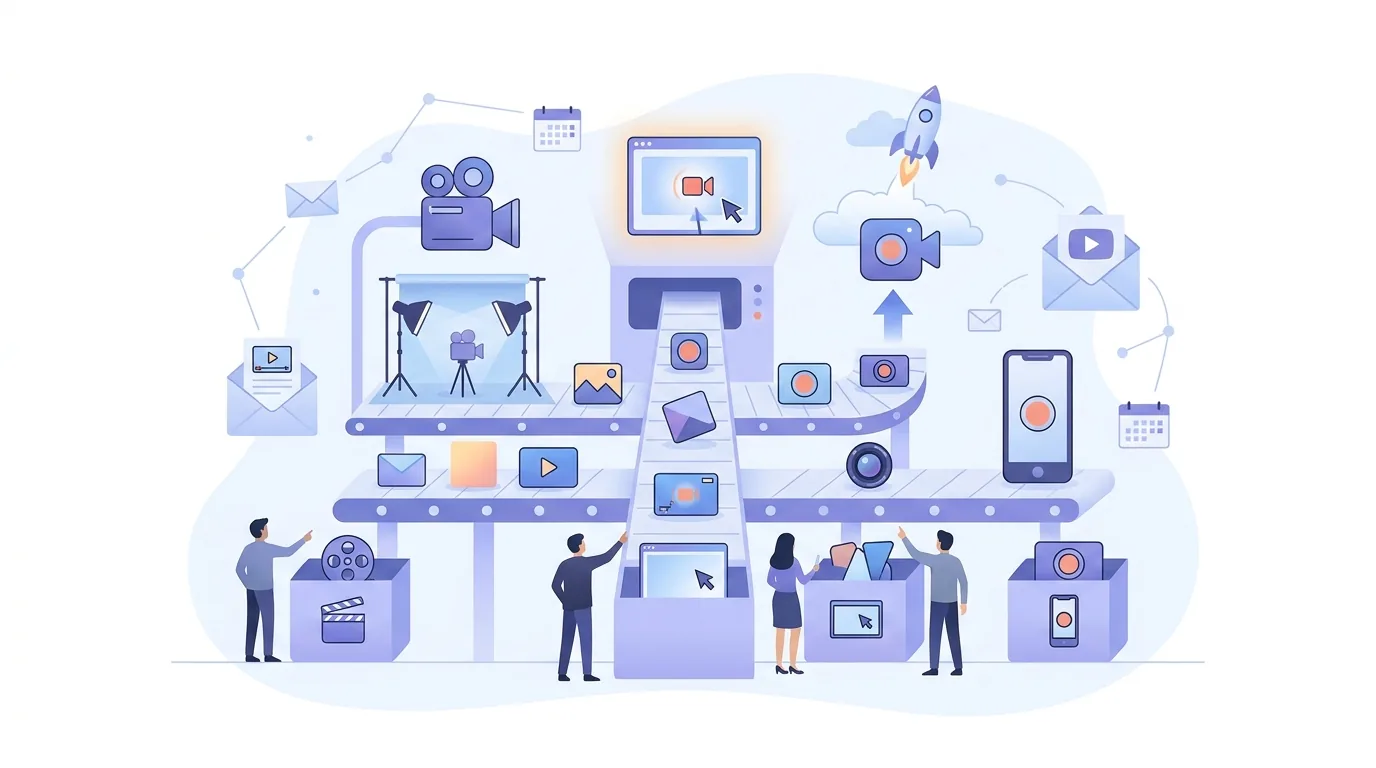
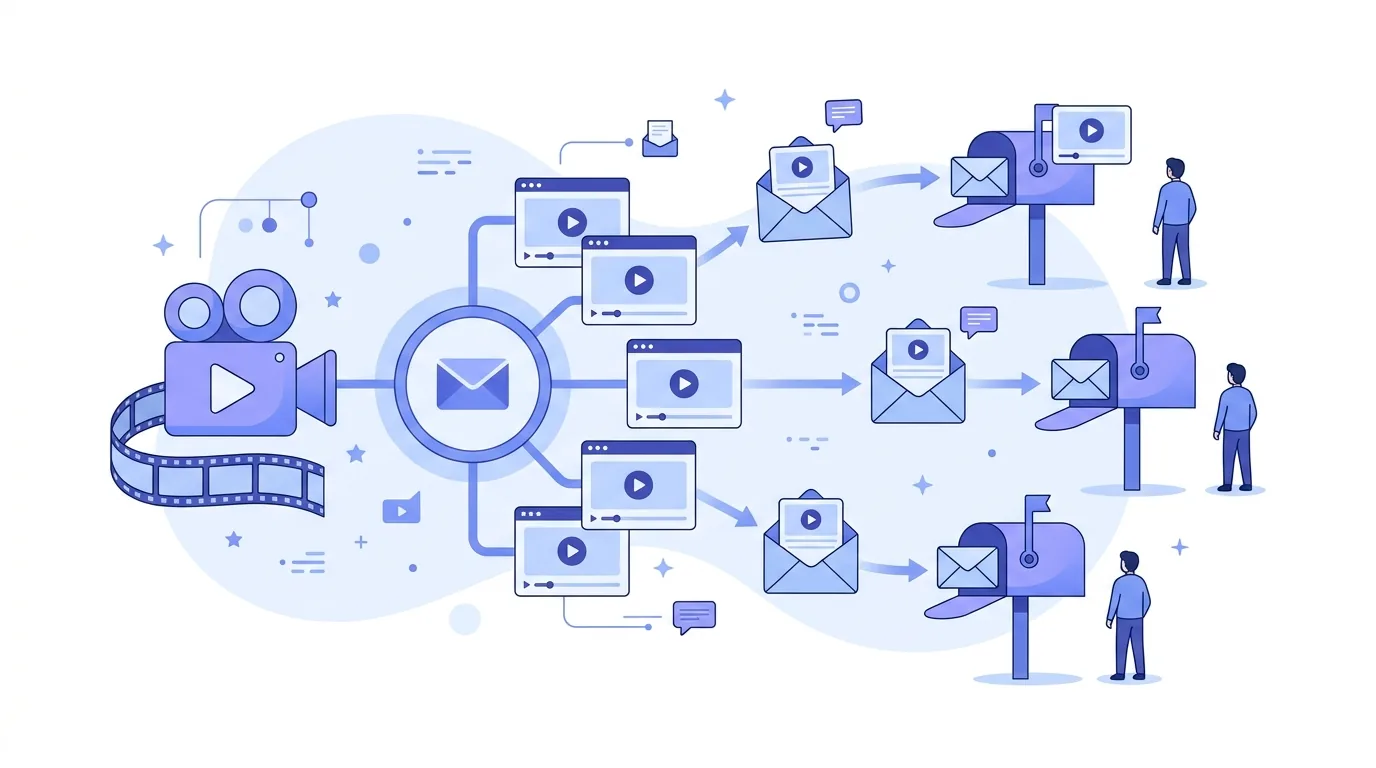
EmailFlow OS, a EmailFlow OS product, handles the cold-outreach demo from the examples above. You record one video, for example the face-and-screen clip, and upload it to EmailFlow OS. Then you connect your own Brevo account and your own sending domain and import your prospect list into EmailFlow OS. From that single recording, EmailFlow OS creates a personalised version for each recipient rather than one per company, so two people at the same account each get their own version. Each version goes out from your inbox, through your Brevo account and your sending domain. No shared platform sender is involved, and the SPF, DKIM and DMARC records remain the ones you manage. How each message is filtered is decided by the receiving server, not by EmailFlow OS. Our article on the personalised video message per recipient explains how the per-recipient step works, and the EmailFlow OS home page describes the whole setup.
Questions people ask
- What are product demos?
- Product demos are presentations that show a buyer the product solving a task they recognise, instead of listing features. The five common formats are a live call, a recorded video, an interactive click-through built from captured screens, a sandbox account and a short video in cold email. A live demo suits evaluation; a recorded or interactive demo suits buyers who research on their own and set their own pace.
- What is product demoing?
- Product demoing means showing a prospective buyer the product in use, solving a task they recognise, instead of describing its features. It can happen live on a call, as a recorded video, as an interactive click-through built from captured screens, or in a sandbox account. Unlike a pitch, the buyer sees the result on screen rather than hearing a claim about it.
- How do you create a demo?
- Define one viewer and one task in a single sentence. Write a problem-first script, set up a clean demo account with plausible data and record the task from start to finish. Then cut the dead time, add captions and host the video with link access. An interactive demo follows the same plan, except that you capture screens and add hotspots instead of recording video.
- How much do interactive demo tools like Supademo cost?
- The price of interactive demo software depends on the number of creator seats, the number of published demos, branding removal, analytics and integrations such as CRM sync. Vendors in this category, including Supademo, Storylane and Navattic, publish their plans on their own pricing pages. Plans and included limits change, so check the current page and ask the vendor for a binding quote for your seat count.
- Can you give me some examples of product videos?
- Common product videos include a before-and-after task demo, a single-feature clip for a feature page, a role-specific version for each buyer persona and an objection clip that answers one recurring question. Others are an integration demo showing data syncing between two tools, a recap after a live call and a short cold-outreach video. Unlike a brand explainer, each one shows a single task.