12 min read Diesen Artikel auf Deutsch lesen Lire cet article en français Ler este artigo em português
How to Share Zoom Recordings: Link or File
The short answer
How you share a Zoom recording depends on where it was saved. For a cloud recording, open the Recordings page in the Zoom web portal, click Share, set the access, passcode, expiry and download options, then copy the sharing information. A local recording is an MP4 in the Zoom folder on the host's computer. Upload it to Google Drive, OneDrive, Dropbox or YouTube, set link access, and send that link instead of the file.
In this article
- Is your Zoom recording in the cloud or on your computer?
- How to share a Zoom recording as a link
- Which share settings decide who can watch?
- How to share a local Zoom recording
- How do I access a Zoom meeting recorded by someone else?
- How do I save a Zoom recording from a link?
- Why can't I share my audio in Zoom?
- Sharing a recording with people outside your company
- Sending one video to many prospects instead
- Questions people ask
To share a Zoom recording, first check where it was saved. If it's a cloud recording, sign in to the Zoom web portal, go to Recordings, click Share next to the meeting, choose who can watch, then click Copy Sharing Information so the passcode goes along with the link. If it's a local recording, upload the MP4 from your Documents/Zoom folder to a file or video host and send that host's link. These steps follow Zoom's support documentation on cloud and local recording (support.zoom.com, checked November 2026).
Is your Zoom recording in the cloud or on your computer?
Zoom saves a recording in one of two places, and the place decides how you share it. The host picks the place when they press Record: Record on this Computer or Record to the Cloud. Cloud recording is only available on paid Zoom accounts, so a recording from a free account is always local. If you aren't sure which one you have, go to the Recordings page in the Zoom web portal. If the meeting isn't listed under cloud recordings, it was saved locally, and only on the computer of whoever hit Record.
| Cloud recording | Local recording | |
|---|---|---|
| Where it lives | Zoom's servers, listed on the Recordings page of the web portal | Default Zoom folder in Documents on the recording computer (Windows: C:\Users\[name]\Documents\Zoom; macOS: /Users/[name]/Documents/Zoom) |
| Files | Video, audio-only and, depending on settings, transcript and chat | An MP4 video file plus an audio-only M4A file per meeting |
| How you share it | A Zoom share link with its own access settings | Upload the MP4 to a file or video host and share that host's link |
| Who can share it | The recording owner or an account admin | Whoever has the file |
Got a local recording but the folder is empty or holds unfinished files? Zoom converts a local recording into MP4 only once the meeting ends. If Zoom is closed or the computer shuts down during that conversion, you're left with unconverted files. Zoom's support documentation explains how to run the conversion again. If you get the MP4 but it plays as a black frame, the cause is usually on the capture side, not the sharing side. Our guide to screen recording black screen causes and fixes walks through it.
How to share a Zoom recording as a link
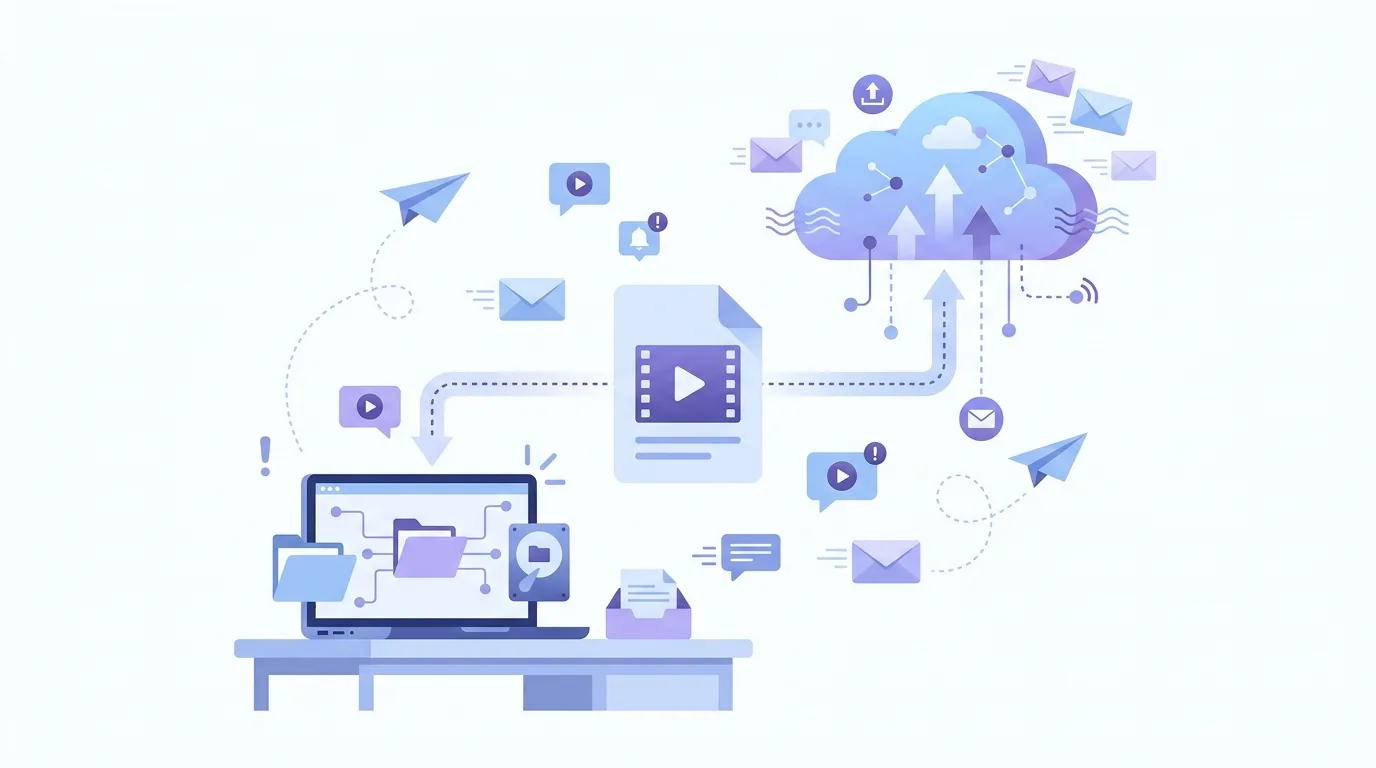
You can share a Zoom cloud recording as a link straight from the web portal, without downloading anything. The steps below follow Zoom's support article on sharing cloud recordings (support.zoom.com, checked November 2026):
- Sign in to the Zoom web portal with the account that owns the recording.
- Open Recordings and select the cloud recordings tab.
- Find the meeting and click Share next to it.
- Set the sharing options: whether the link is public or limited to authenticated users, whether viewers can download, whether a passcode is required, and when the link expires.
- Click Copy Sharing Information (or copy the link alone) and paste it into your email or chat.
Check the passcode setting before you send. If a passcode is on and you only paste the URL, the recipient gets a passcode prompt and has no way to get past it. Copy Sharing Information includes the passcode. Copying just the link doesn't. If you limited viewing to authenticated users, anyone outside your Zoom account or domain gets a sign-in wall, which is a common reason a link works for colleagues and fails for a customer.
Which share settings decide who can watch?
| Setting | What it controls | What goes wrong if it's set wrong |
|---|---|---|
| Share publicly vs. authenticated users only | Whether anyone with the link can watch or only signed-in users from your account or domain | External recipients see a sign-in page instead of the video |
| Passcode protection | A passcode the viewer must enter before playback | The link gets forwarded without the passcode and recipients can't open it |
| Link expiry | The date after which the link stops working | An old link in a follow-up email leads to an error page |
| Viewers can download | Whether a download button appears for viewers | Recipients can't keep a copy, or anyone can download a meeting you meant to be view-only |
Your Zoom account admin may lock some of these settings at account level. If an option is greyed out on the share dialog, the admin set it, and changing it on your side won't work.
Here's how those settings combine in a typical sales case. Say you recorded a discovery call in the cloud and the buyer wants to forward it to a colleague in finance who wasn't on the call. Set access to public, because that colleague has no account in your Zoom domain. Keep the passcode on, so a forwarded URL alone doesn't open the recording. Turn downloads off if the call includes pricing you don't want saved as a file. Set the expiry to a date after your planned follow-up, so the link in that follow-up still works. Then send Copy Sharing Information, not the bare URL. If you later send a follow-up in the same thread, open the link signed out first: an expired link is a frequent reason a recipient replies that the video 'doesn't work'.
How to share a local Zoom recording
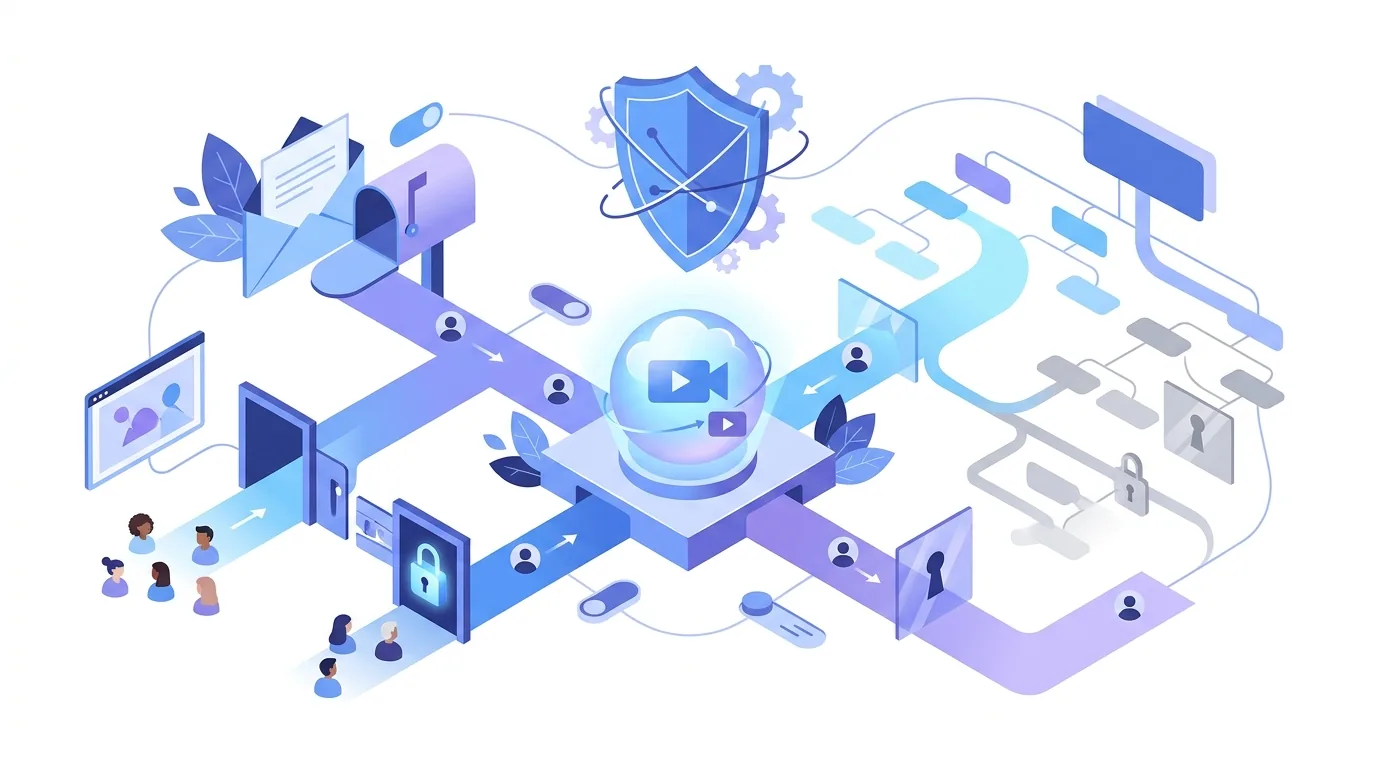
A local recording has no Zoom link, so you upload the MP4 somewhere that can make one. Email attachments are a bad fit for two technical reasons. First, mail is a text protocol, so an attached video is encoded into text characters for transport, and the encoded message ends up larger than the MP4 on your disk. Second, each receiving mail server sets its own maximum message size and can refuse anything bigger, and you can't see that limit before you send. A message that one recipient's server accepts can bounce at another's. Our article on how to send a large video through email explains where those size limits come from. The realistic hosts for a Zoom MP4 are general file storage and video platforms, and they differ in how they control access and how the file plays back:
| Option | Access control | Playback for the recipient | Where it stops |
|---|---|---|---|
| Google Drive | Restricted to named people, or anyone with the link | Previews in the browser after Google finishes processing | Large files show a processing message until the preview is ready |
| Microsoft OneDrive | Specific people, people in your organisation, or anyone with the link | Previews in the browser | Organisation policies can block anyone-with-the-link sharing |
| Dropbox | Shared link with view or edit access, plus optional restrictions depending on plan | Previews in the browser | Some link controls depend on the Dropbox plan |
| YouTube (Unlisted or Private) | Unlisted: anyone with the link. Private: only invited Google accounts | Streams in the YouTube player | Content becomes subject to YouTube's community guidelines and processing |
Whichever host you pick, check the link in a private browser window where you're signed out before sending it. If it asks you to sign in, so will your recipient. We cover the details in our guide on how to create and share a video link.
How do I access a Zoom meeting recorded by someone else?
Only the person who recorded the meeting, or an admin on their Zoom account, can give you access. Zoom doesn't automatically send recordings to participants. If it was a cloud recording, ask the host to share the link from the Recordings page. If you need a sign-in-free link, ask them to set it to public, and to send the passcode with it. If it was a local recording, the file is on the host's computer and nowhere else, so they have to upload it and send you a link. If the host left the company and the recording was in the cloud, the account admin can usually still reach it. A local recording on a wiped laptop is gone.
How do I save a Zoom recording from a link?
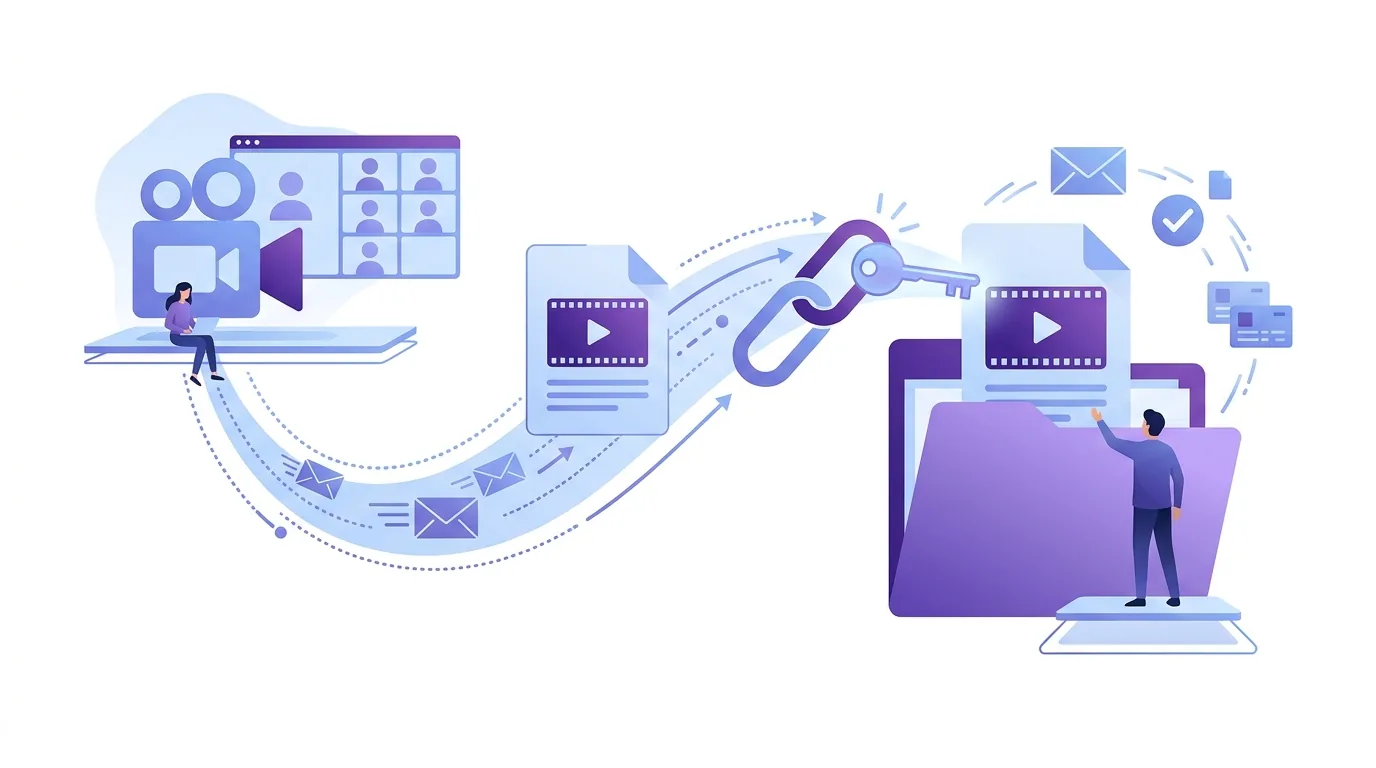
You can download a Zoom recording from a share link only if the owner turned on the viewers-can-download option. When it's on, a download button appears on the playback page. When it's off, the playback page has no download button, and the only way to get a copy is to ask the owner to enable downloading or send you the file. A recording link that has expired can't be saved at all. The owner has to create a new share link or extend the expiry date.
Why can't I share my audio in Zoom?
In a live meeting, screen sharing sends the picture but not your computer's sound unless you turn it on. In the Share Screen dialog, tick Share sound before you start sharing. Sound that was never shared doesn't appear in the recording either. If the shared sound plays in the meeting but the finished MP4 has no audio track, it's a file problem rather than a Zoom setting. Our guide to no audio on video shows how to check whether the file has an audio stream at all.
Sharing a recording with people outside your company
A Zoom recording almost always contains other people's voices, faces and names. The EU General Data Protection Regulation (GDPR, published on eur-lex.europa.eu) treats any information about an identifiable person as personal data, and it lists disclosure by transmission as a form of processing. So sending the recording to a new recipient is processing, and the GDPR requires a legal basis for it, such as consent or a legitimate interest. The GDPR also says what people have to be told about who receives their data. Zoom shows a recording notice in the meeting, but that notice tells participants about the recording, not about who will receive it later. Cut the recording down to the part you need, or get agreement from the people in it before you send a full meeting recording outside your company. Whether your specific case is covered depends on how you operate, so check it with whoever handles data protection in your company.
Sending one video to many prospects instead
Sending a meeting recording to the people who were in the meeting is a different job from sending a video made for outreach to prospects you haven't met. The second job is what EmailFlow OS does, and it's described here as a EmailFlow OS product, not as a way to share Zoom meetings. You record one video and upload it to EmailFlow OS. You connect your own Brevo account and your own sending domain, and you import your prospect list into EmailFlow OS. EmailFlow OS then makes a personalised version of that single recording for each recipient, not just each company, and sends each one from your own inbox through your Brevo account and domain. There's no shared platform sender. Your SPF, DKIM and DMARC records and your domain's reputation stay under your control. The receiving server still decides whether a message is delivered. You can see how this fits into a prospecting workflow in video prospecting with one recording, or read about personalised AI video email for B2B outreach on the home page.
Questions people ask
- How do I share a Zoom recording as a link?
- Sign in to the Zoom web portal, open Recordings, choose the cloud recording and click Share. Set public or authenticated-only access, passcode, expiry and download permission, then click Copy Sharing Information so the passcode is included. A local recording has no Zoom link: upload the MP4 to a host like Google Drive or YouTube and share that link. Source: Zoom support documentation, checked November 2026.
- Can I share a Zoom recording on a free account?
- Free Zoom accounts can only record locally, because cloud recording needs a paid licence. The recording ends up as an MP4 in the Zoom folder in your Documents directory, next to an M4A audio file. To share it, upload that MP4 to Google Drive, OneDrive, Dropbox or YouTube (Unlisted), set link access to anyone with the link, and test the link while signed out.
- Why does my Zoom recording link ask for a sign-in?
- The share setting is probably authenticated users only, which means only signed-in users from your Zoom account or domain can watch. External recipients get a sign-in page instead of the video. Change the option to public in the Recordings share dialog. If the option is greyed out, your Zoom account admin has locked it at account level, and only the admin can change it.
- How do I share a Zoom recording with someone who wasn't in the meeting?
- Ask the host, the person who pressed Record, or an admin on their Zoom account. Zoom doesn't send recordings to participants automatically. For a cloud recording, the host shares a link from Recordings and should send the passcode with it. For a local recording, the MP4 exists only on the host's computer, so the host has to upload it to a file host and send you that link.
- Should I attach a Zoom recording to an email?
- Usually not. An attached video is encoded into text for transport, so the message grows beyond the file size, and each receiving server can refuse messages above its own size limit, which you can't see in advance. A link to the cloud recording or an uploaded MP4 keeps the email small and, unlike an attachment, lets you change the passcode, set an expiry or revoke access after sending.