11 min read Diesen Artikel auf Deutsch lesen Lire cet article en français Ler este artigo em português
Webcam Test: Online, Windows 10 and Zoom
The short answer
A webcam test asks the operating system for the camera, opens a live stream and shows you the picture. In a browser that happens through the getUserMedia permission prompt. On Windows 10 the Camera app does it, and Zoom and Google Meet show a preview before you join. If the preview is black or missing, check permissions and which apps are holding the camera before you suspect the hardware.
In this article
- What does a webcam test actually check?
- How does a webcam test online work?
- Is a free webcam test online safe to use?
- Which webcam test tool should you use?
- How do you test a webcam on Windows 10?
- How do you test a webcam on a Mac?
- How do you run a Zoom webcam test?
- Is there a Google webcam test?
- Why does a webcam test pass but the recording still fail?
- Example: a webcam test before recording an outreach video
- After the webcam test: recording one video for cold outreach
- Questions people ask
To test a webcam, open a live preview of it. You can allow camera access on a browser test page, open the Windows Camera app or Photo Booth on a Mac, or use the video preview in Zoom or Google Meet. A moving, focused picture means the camera, its driver and its permissions all work. A black box usually means a blocked permission or another app holding the camera, not broken hardware.
What does a webcam test actually check?
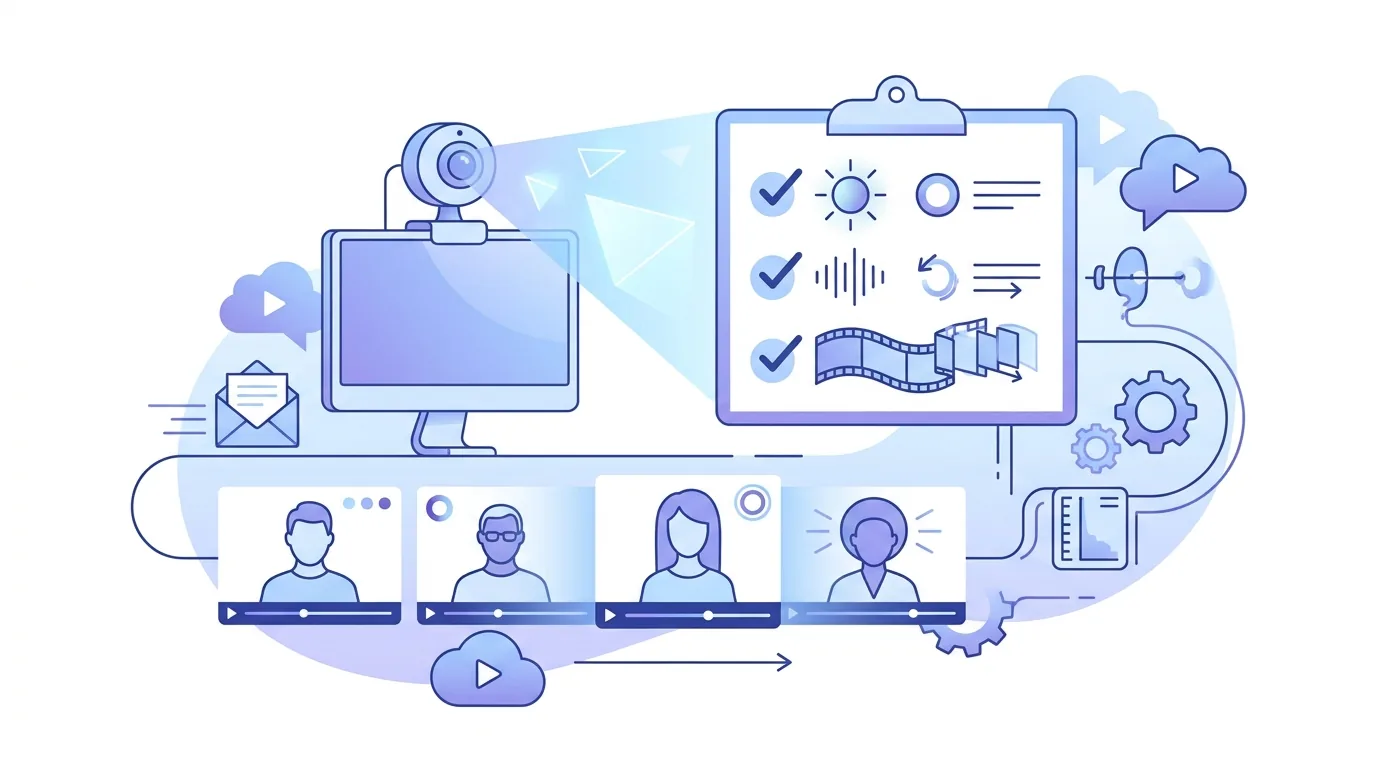
Every webcam test does the same three things. It asks the operating system for a video device, opens a stream from it and draws that stream on screen. In a browser the request goes through the getUserMedia call defined in the W3C Media Capture and Streams specification. That's why the browser shows a permission prompt before you see a picture. A test that passes tells you four things: the camera is detected, the OS and the app are allowed to use it, no other program has locked it, and the image is usable.
It doesn't tell you everything. The resolution and frame rate a test reports are whatever the browser or app negotiated with the driver, and that can be lower than the camera's maximum. Lighting changes the result as well. In a dim room, auto-exposure keeps the shutter open longer, so the frame rate can fall even though the hardware is fine. Run your test in the room and light you'll actually record or call in. A test at a bright desk at noon tells you little about a recording at dusk.
How does a webcam test online work?
An online webcam test is a web page that calls the browser's camera API. There's nothing to install, which is why most tests people search for run online. The steps are the same on every site:
- Close any app that might be holding the camera, such as Zoom, Teams, OBS or a second browser tab with a call open.
- Open the test page and start the test.
- When the browser asks for camera access, click Allow. If you click Block, the page gets no stream and shows an error or a black box.
- Check the live preview for picture, focus and colour. If the page shows them, read the reported resolution and frame rate too.
- If several cameras are connected, pick the right device in the page's selector or in the browser's camera setting.
If you blocked access by mistake, the browser remembers that choice for the site. You have to reset it before the test can work again. We cover the reset in Chrome, the OS-level camera toggle and other causes in our guide to camera not working on Chrome.
Is a free webcam test online safe to use?
Free online webcam tests are common, and most don't need an account. Granting camera permission gives the page a live video stream. Whether frames stay on your device or get uploaded depends on how that site is built, not on the browser. Read the site's privacy section before you click Allow. Some test sites, webcamtests.com among them, publish one on the same page. After the test, take the permission back in your browser's site settings if you don't plan to use the site again. Otherwise the site can request the camera without asking next time.
Which webcam test tool should you use?
Choose the tool that matches where you'll use the camera. A browser test checks the browser path, the Windows Camera app checks the OS and driver path, and a Zoom or Meet preview checks that one app's path. The table covers only what each option's own search listing or help pages describe. It doesn't rank them.
| Option | Where it runs | Install needed | What it checks | Where it stops |
|---|---|---|---|---|
| webcamtests.com | Browser | No | Whether the webcam works online, per its own listing; the page also has hardware requirements and privacy sections | Checks the browser path only, not a desktop app |
| onlinemictest.com webcam test | Browser | No | Live webcam preview in the browser, per its listing | Checks the browser path only |
| webcammictest.com | Browser | No | Webcam and microphone check in the browser, per its listing | Checks the browser path only |
| VEED webcam test | Browser | No | Whether the device works, then lets you record from the webcam in VEED's recorder, per its listing | Recording happens inside VEED's own tool |
| Windows 10 Camera app | Windows desktop | No, built in | OS camera access and the driver, outside any browser | Doesn't test browser permissions |
| Zoom video settings and zoom.us/test | Zoom client | Zoom client | The camera as Zoom sees it, before a real meeting | Doesn't test other apps or browsers |
| Google Meet preview | Browser (Meet) | No | Camera and microphone before you join a call | Only tests the browser and profile you're using |
How do you test a webcam on Windows 10?
Windows 10 has a built-in Camera app, so you can test without a browser. That keeps browser permissions out of the picture.
- Click Start, type "camera" and open the Camera app.
- If you see a live picture, the camera, its driver and the OS permission are all working.
- If the app says it can't find a camera, open Settings > Privacy > Camera and make sure camera access is turned on for the device and for apps.
- Still nothing? Open Device Manager and look under Cameras or Imaging devices. A missing entry or a warning icon points to a driver or connection problem.
- If the Camera app works but the browser doesn't, the cause is browser permission, not hardware.
On newer Windows versions the same camera permission sits under Settings > Privacy & security > Camera. If you're testing the camera so you can record yourself next to a screen capture, our walkthrough on how to screen record on Windows covers the recording side.
How do you test a webcam on a Mac?
macOS ships with Photo Booth, which opens the built-in or connected camera straight away and needs no internet connection. If Photo Booth shows a picture but a browser or Zoom doesn't, the camera is fine and the app lacks permission. On current macOS versions that permission sits under System Settings > Privacy & Security > Camera, where each app that has asked for the camera appears with its own switch. An app that was switched off there gets no stream, and it often has to be restarted after you switch it on before the preview appears.
How do you run a Zoom webcam test?
In the Zoom desktop client, open Settings from your profile picture and choose Video. You'll see a live preview from the selected camera, with a dropdown to switch devices. If you'd rather check a full meeting, Zoom's help center points to zoom.us/test, which opens a test meeting where you can confirm camera and audio before a real call.
A Zoom test only proves the camera works in Zoom. Windows and macOS let one app hold the camera exclusively. If the Zoom client is still running in the background, another app or a browser test can fail even though Zoom showed a perfect picture a minute earlier. Quit Zoom fully, from the system tray too, before you test anywhere else.
Is there a Google webcam test?
Google doesn't offer a standalone webcam test page. People who search for a Google webcam test usually want one of two things. The first is Google Meet's pre-join screen, which shows your camera preview and microphone before you enter a call. You don't need to start a real meeting to use it. The second is Chrome's own camera setting, which lists the device the browser will use and the sites that are allowed or blocked. If Meet's preview is black while the Windows Camera app works, look at Chrome's site permission first. Look at the camera after that.
Why does a webcam test pass but the recording still fail?
- A different device gets picked: the test used your built-in camera, but the recording app defaulted to a virtual camera or a docking station camera.
- The camera is locked: another app grabbed it between your test and your recording.
- Low light: the test was fine at your desk, but in a darker room the frame rate dropped and the picture got noisy.
- Audio wasn't part of it: most webcam tests only show video, so a muted or wrong microphone goes unnoticed.
- A different browser profile: permissions belong to each profile, so access you granted in one profile doesn't carry over to another.
Most of these come from a mismatch between the test environment and the real one. Run your final test in the same app, profile, room and light you'll record in. Audio is the most common gap. Our guide on no audio on video shows how to confirm a recording actually contains an audio track.
Example: a webcam test before recording an outreach video
A live preview passing isn't the same as a usable recording. Before recording a video you'll send to prospects, we'd check these things, in this order:
- Test in the recorder you'll actually use, not on a separate test page, so the device, resolution and permission are the ones in your recording.
- Record a short test clip and play it back with sound. A preview can't show you echo, a wrong microphone or audio that drifts out of sync.
- Check framing with the window you plan to show. If you'll talk next to a screen share, make sure your face isn't covered by the recorder's own controls.
- Look at the background as a stranger would. Whiteboards, open browser tabs and other people's names on a screen all end up in the video.
- Record at the time of day you'll record for real. Daylight from a window changes exposure and colour from one hour to the next.
- Check what the clip says out loud. A recording that will be sent to many people shouldn't name one prospect, company or date that only fits one of them.
After the webcam test: recording one video for cold outreach
Many B2B senders test a webcam because they're about to record a video for outreach. EmailFlow OS is built around exactly one recording. You record a single video and upload it to EmailFlow OS, connect your own Brevo account and sending domain, and import your prospect list into EmailFlow OS. EmailFlow OS then personalises that one recording for each recipient, not for each company. Every version goes out from your own inbox, through your Brevo account and on your own sending domain, never from a shared platform sender. The domain and its SPF, DKIM and DMARC records stay under your control. How the setup fits together is described on the EmailFlow OS personalised video email page.
A webcam test only checks the picture. It says nothing about whether the email gets delivered. That depends on the receiving server and on your domain's reputation. Before a first send, run an email spam test on the message and check the subject line and DNS records. The webcam test covers the camera, and these checks cover the email.
Questions people ask
- Why is my webcam test showing a black screen?
- A black preview with no error usually means the page got a stream but no frames. The usual causes are another app holding the camera, a physical privacy shutter or a function-key camera toggle being on, or the wrong device being selected. Close Zoom, Teams and other tabs, check the shutter, then pick the camera manually in the test page or in the browser's camera setting.
- Does a webcam test online record or store my video?
- The browser API only hands the page a live stream. Whether the page records or uploads it depends on that site's code and privacy policy. A test that only draws the preview on screen doesn't need to upload anything, but you can't verify that from the preview alone. Read the site's privacy section and revoke the permission afterwards if you won't use the site again.
- Why does my webcam test show a lower resolution than the box says?
- The reported resolution is whatever the browser or app negotiated with the driver, not the sensor's maximum. USB bandwidth, the browser's default constraints and the app's own settings can all lower it. Zoom, for example, has its own HD option in its video settings. Test in the app you'll actually use to see the resolution you'll actually get.
- Can I test a webcam without the internet?
- Yes. Online tests need a connection to load the page, but the Windows 10 Camera app and the macOS Photo Booth app run locally and read the camera straight through the operating system. That also separates OS and driver problems from browser permission problems: if the local app works and the browser doesn't, the browser is the cause.
- How do I test my webcam and microphone at the same time?
- Use a check that covers both: Google Meet's pre-join screen shows the camera preview and a microphone level, and zoom.us/test, per Zoom's help center as of November 2026, opens a test meeting for camera and audio. A video-only test page skips the microphone entirely. Recording a short clip and playing it back is the one check that shows both in the final file.