10 min read Diesen Artikel auf Deutsch lesen Lire cet article en français Ler este artigo em português
Video Link: How to Create and Share One
The short answer
A video link is a URL that points to a video stored on a host's server. The recipient streams it in a browser and doesn't download a file. To make one, upload the file to a video host or link generator, set sharing to "anyone with the link", copy the URL and check it in a signed-out browser. Then paste it into your email behind a still thumbnail, because most email clients won't play video inside the message.
In this article
- What is a video link?
- How do I create a video link?
- Which tool should I use to make a video link?
- What goes wrong with video links in email?
- How to send a large video through email
- How can I email a large video file without a separate host?
- Personalised video email: what changes about the link?
- How EmailFlow OS handles the video for cold outreach
- Video sales letter funnel: where does the link go?
- Questions people ask
What is a video link?
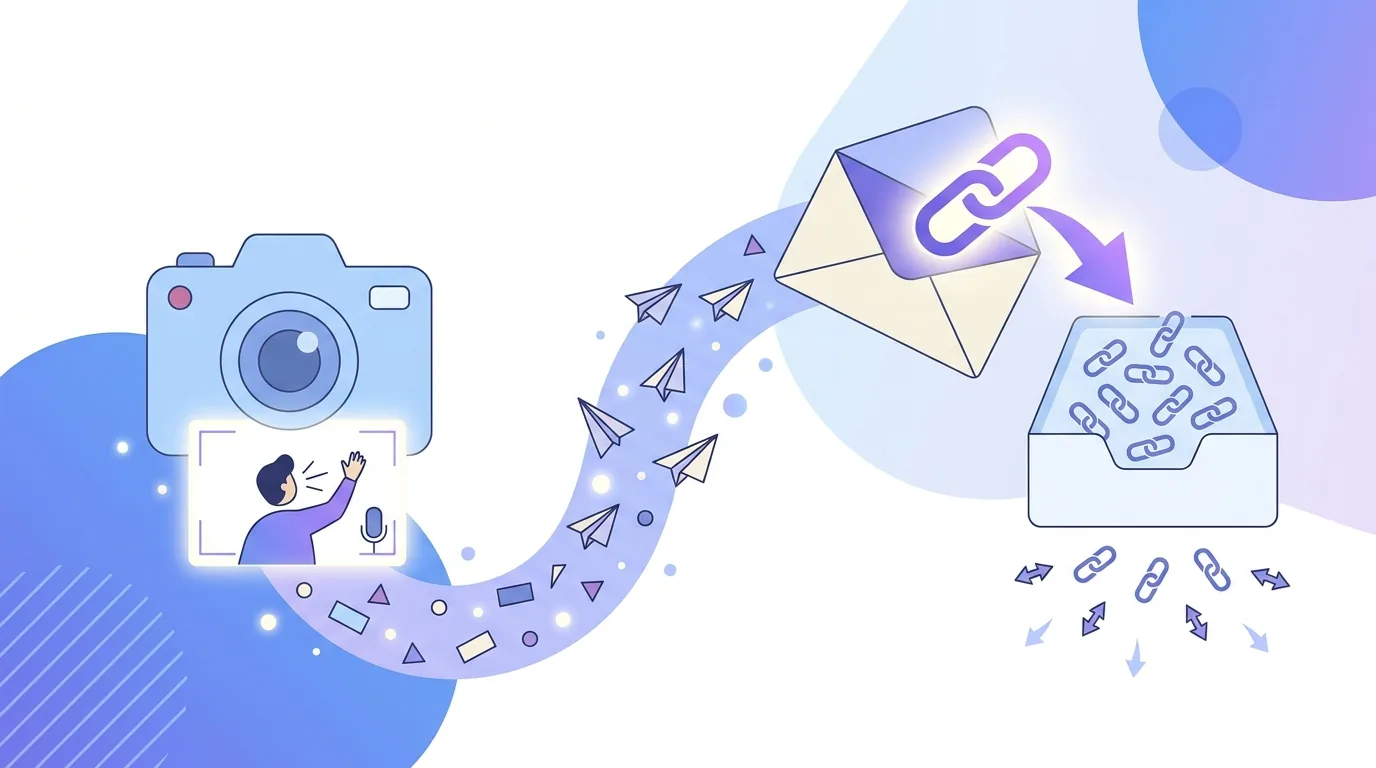
A video link is a web address that opens a hosted copy of your video. The file isn't inside the message. It sits on the host's servers, and the URL points either to a player page or straight to the file. When someone clicks it, their browser requests the video from the host and starts playing before the whole file has loaded. That's why a link is the same size whatever the length of the video. A long walkthrough and a short clip both arrive as one line of text.
Here's an example. You record a product demo as an MP4, upload it to a host and get back a URL. You paste that URL into an email under a screenshot of the first frame. The prospect clicks the screenshot, a player page opens and the demo plays. What the recipient can do after that is decided by settings at the host, not in the email: whether they have to sign in, whether they can download the file, whether the link expires. Most broken video links come down to one of those settings.
How do I create a video link?
The steps are the same whichever host you use. Google's AI overview for this search describes the core of it: upload the file, wait for the upload to finish, copy the generated URL. What it leaves out are the checks that decide whether the link works for someone outside your account.
- Export the video in a format the host accepts. MP4 is the safest choice. One free link generator ranking for this search lists MP4, MOV and WebM and advertises uploads up to 100MB, so check your host's limit before exporting a long recording at full resolution.
- Upload the file and wait for processing to finish. A URL copied while the host is still transcoding can show a 'processing' screen or an error to the first viewers.
- Set access. 'Anyone with the link' lets a prospect watch without an account. 'Restricted' or 'only people in my organisation' shows them a sign-in or request-access page instead.
- Decide on downloads and expiry. If the video shouldn't circulate, turn downloads off where the host allows it. If the link expires, note the date so you don't send it in a follow-up after it's dead.
- Copy the share URL, then open it in a private browser window where you're signed out. If you see the video, the recipient will too. If you see a login page, go back to the access step.
- Grab a still frame as a thumbnail, link the image to the URL, and add the same URL as a plain text link underneath for clients that block images.
Which tool should I use to make a video link?
Any service that hosts a file and gives you a public URL will do the job. The table compares the tools that come up for this search by the same yardstick: how you get the link, what the tool's own page states, and where it stops if you want to use the link in B2B email. The last column is the same for every tool, because they all produce one link per upload.
| Tool | How you get the link | What its page in the search results states | Where it stops for B2B email |
|---|---|---|---|
| ScreenPal | Upload a video file, wait for the upload, copy the URL | Cited in Google's AI overview as a place to upload an MP4 and get a link | One video, one URL: every recipient sees the same recording |
| Canva | Share a finished video from the editor as a link | Download as MP4, post to social media, or send as a link | One video, one URL: every recipient sees the same recording |
| Kapwing | Use its video link generator on an uploaded video | Creates a URL link for any video online to share with anyone | One video, one URL: every recipient sees the same recording |
| YouTube (unlisted) | Upload, set visibility to unlisted, copy the share URL | Cited as a source in Google's AI overview for this search | Plays on a public platform page; one URL for everyone |
| Google Drive | Upload, change general access to anyone with the link, copy link | File storage with link sharing; not a dedicated video host | Restricted access is the default trap; one URL for everyone |
For a one-off share, such as a walkthrough for a colleague or a demo for a single client, any of these is enough. The limit shows up when the same video goes to a list: a generic link can't say anything different to the last recipient than to the first.

What goes wrong with video links in email?
Most failures happen after you hit send and you never see them, because the recipient just doesn't watch. These are the usual causes:
- Access left on restricted: the prospect gets a sign-in or request-access page. Cause: the host's default sharing setting.
- Direct file URL instead of player page: the browser downloads the file rather than playing it. Cause: copying the file address instead of the share link.
- Embedded video that doesn't play: Gmail and most desktop clients strip or ignore video inside the message body, leaving a blank box. Cause: trying to embed instead of linking a thumbnail.
- Expired or deleted link: a follow-up weeks later points to a dead page. Cause: an expiry setting or a cleaned-up library.
- Link on a domain filters distrust: public URL shorteners are shared by many senders, so their reputation isn't yours. Cause: wrapping the host URL in a shortener.
- Image-only button: with images blocked, the recipient sees no link at all. Cause: no plain text URL next to the thumbnail.
The link is only half of it. Whether the email carrying it reaches the inbox is decided by the receiving server, and your sending domain's authentication is part of what it checks, so make sure SPF, DKIM and DMARC pass before a video campaign. Our guide to DKIM, DMARC and SPF for cold email senders walks through each record.
How to send a large video through email
You send a large video through email by sending a link to it, not the file. Mail providers cap attachment size, and attachments are encoded for transport, which makes them bigger in transit than on your disk. Gmail handles oversized files by offering to upload them to Google Drive and inserting a Drive link instead. So even when you try to attach, a large video usually ends up as a link anyway, often with Drive's restricted default access. Uploading to a host yourself, setting access and testing the URL gives you control over what the recipient actually sees. If the file is only slightly too big, compressing it or exporting at a lower resolution can bring it under the cap. Our full walkthrough on how to send a large video through email covers compression, hosts and follow-ups.
How can I email a large video file without a separate host?
You email a large video file without a separate host by using the cloud storage that comes with your mailbox. In Gmail that's Google Drive, and in Outlook it's OneDrive: both let you insert the file as a shared link from the compose window. The catch is the same in both cases. Check the sharing level before sending, because a link that only works for people in your organisation shows external recipients an access request. If you want the clip to appear as a clickable preview rather than a file link, see how to send a video in an email with a thumbnail.

Personalised video email: what changes about the link?
A personalised video email gives each recipient a video made for them, rather than the same link pasted into every message. With generic link tools, personalising means recording a separate clip per prospect, uploading each one and pasting each URL into the right email by hand. That works for a handful of prospects. It doesn't work for a list. Personalising per company is a halfway step: everyone at one account sees the same version, which falls apart when two contacts there compare notes or forward it.
Tracking is the other change. Many video hosts log who opened the link and how long they watched, usually by setting cookies or similar identifiers in the viewer's browser. EU ePrivacy rules generally require consent before information is stored on or read from a user's device unless it's strictly necessary for the service, so check what your host sets before you rely on watch data from EU prospects. For the approaches side by side, read our piece on a personalized video message per recipient.
How EmailFlow OS handles the video for cold outreach
EmailFlow OS is our own product and works differently from a link generator. You record one video and upload it to EmailFlow OS. You connect your Brevo account and your sending domain, and you import your prospect list into EmailFlow OS. EmailFlow OS then personalises that single recording for each recipient, not each company, so every person on the list gets their own version. Each version is sent from your own inbox through your own Brevo account and your own sending domain, never from a shared platform sender. The domain and its SPF, DKIM and DMARC records stay under your control. There's more on the personalised AI video email from EmailFlow OS on our home page.

Video sales letter funnel: where does the link go?
A video sales letter funnel moves a prospect from a traffic source to a page with a long-form sales video, then to one call to action such as booking a call, and then into follow-up for anyone who watched but didn't act. The video link sits at the second step: emails, ads and posts all point to the same landing page, where the video sits next to the button. Email shouldn't carry the video sales letter itself. A long VSL is far too big to attach and won't play inline, so the email links to the page with a thumbnail. The script structure and tools are covered in our video sales letter guide.
Questions people ask
- How to email large video files to several people at once?
- Upload the video once to a host or to Google Drive or OneDrive, set access to anyone with the link, and paste the same URL into one email or a mail merge. Don't attach the file to each message. Attachments count against size caps for every recipient, while a link is one line of text. Test the URL signed out first.
- Is a video link the same as an embedded video?
- No. A link is a URL that opens the video in a browser. An embedded video tries to play inside the email body using a video tag, which Gmail and most desktop clients don't support, so recipients see a blank space or a fallback. A thumbnail image linked to the URL looks like an embed but works in any client.
- Why does my video link ask for a login?
- The host's access setting is restricted, which is the default on Google Drive and many workspace tools. Change general access to anyone with the link, or to public or unlisted on a video platform. Then open the URL in a private window while signed out. If the video plays there, an external recipient can watch it too.
- Can I make a video link for free?
- Yes. Several of the tools in Google's results for this search, including Kapwing's video link generator and Canva's share feature, describe free link creation, and unlisted YouTube uploads cost nothing either. Free plans usually differ from paid ones in upload size, branding and download controls, so check the vendor's plan page before uploading a long recording.